


Are you a student? Yes? Here are some of the best Chrome extensions for students, from writing assistants to research tools.
Chrome is the most widely used browser in the world—with over 70 % market share across platforms—making it students’ default research and productivity hub.
Google Chrome has become students’ digital study desk, library, and sometimes a source of stress. However, Chrome extensions can help students with their writing, research, and productivity.
In this article, we’ll explore some of the best extensions for students that turn Chrome into a smarter study partner.
Table of Contents
How We Chose Chrome Extensions for Students
Not all extensions are created equal. Installing too many extensions can slow down your browser.
While choosing the right extensions for students, we focused on tools that enhance students’ online learning experience and help them achieve academic success.
Another important factor we focused on is that Chrome extensions shouldn’t be complicated to use. Students can figure out how to use the tool efficiently.
Moreover, we have included a variety of Chrome extensions—from grammar checking tools for students to improve their writing to note and tab-management extensions for those who need help with organization.
In short, we’ve paid attention to:
- Reliability
- User friendliness
- Usefullness
So, let’s get started.
Productivity-Focused Chrome Extensions
Here are some of the best productivity-focused Chrome extensions that will help you keep notes and organize assignments.
1. Google Keep Chrome Extension
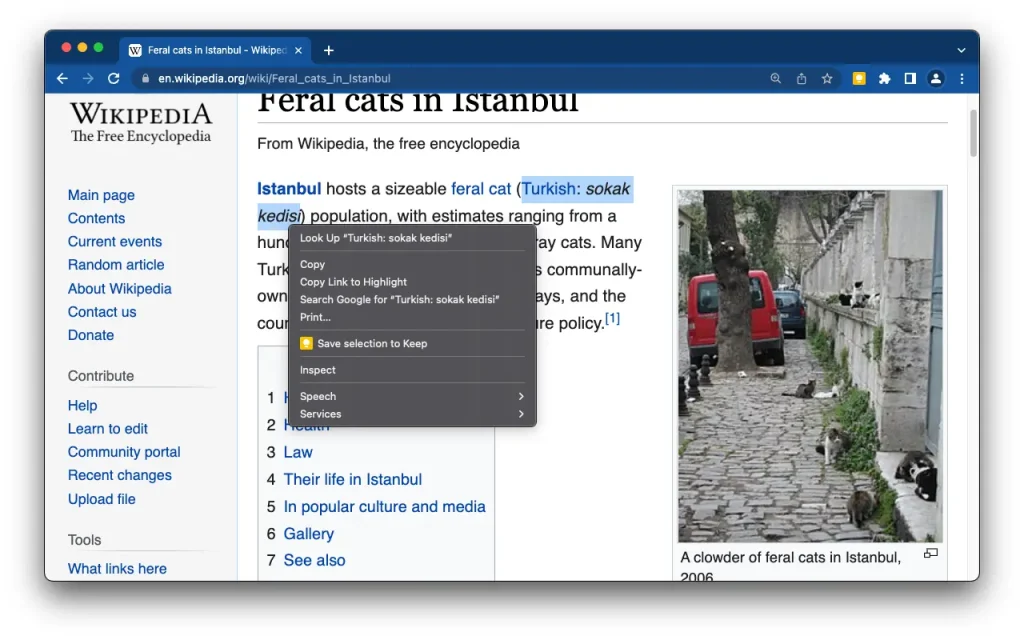
Google Keep Chrome Extension is a lightweight productivity tool that allows you to save content from the web—such as links, images, and text with just one click. You can consider this tool as your digital sticky notes.
Key Features:
- One-Click Saving: It’s very easy to save the current URL as a new note instantly by clicking the keep icon in your toolbar.
- Contextual Note-taking: You can add your own notes or descriptions to provide context for why you saved it.
- Selection Clipping: You can save a specific piece of data to note by highlighting text or right-clicking an image on any webpage.
- Labels & Organization: Add labels (e.g., “Work,” “Research,” “Shopping”) directly from the extension popup to categorize the note.
- Real-Time Sync: Whatever you save via the extension is immediately synced across all devices where you use Google Keep (Android, iOS, Web, and Wear OS).
| Users: 8,000,000+ | Ratings: 4.0 |
| Pros: Simplicity, speed, ecosystem integration, and offline access |
| Cons: Minimal formatting and character limit (20,000) |
| Best For: It’s a great option for students who want a lightweight but powerful note-taking tool. |
2. Todoist for Chrome: Planner & Calendar
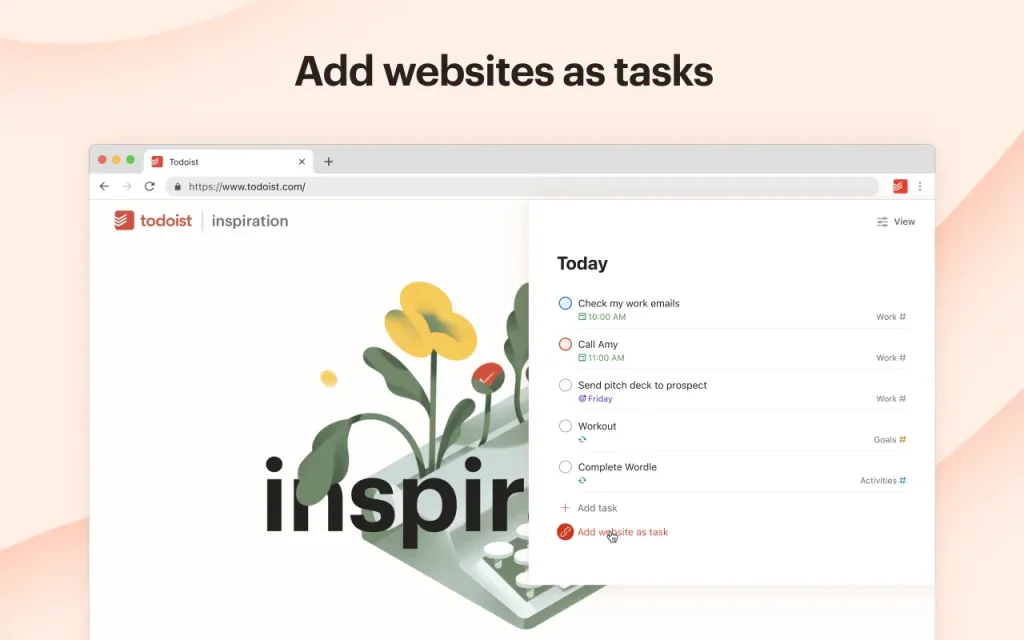
Todoist for Chrome is another essential tool that allows you to capture ideas, save articles, and manage your schedule without having to switch tabs or open a separate app.
Key Features:
- Quick Add with Natural Language: You can use the “+” icon or a shortcut to type tasks like “Meeting at 3 pm tomorrow #Work,” and Todoist will automatically set the date and project.
- “Add Website as Task”: You can turn the URL you are currently viewing into a task. It’s a perfect option for “read later” lists.
- Text Highlight to Task: You can select any text on a webpage, right-click, and choose “Add to Todoist.” It creates a hyperlinked task.
- Compact View: You can open a mini-version of Todoist where you can view your “Today” list, projects, and even Calendar or Board views without leaving your current site by clicking the extension icon.
| Users: 700,000+ | Ratings: 4.7 |
| Pros: Contextual productivity, seamless sync, superior NLP, and minimalist design |
| Cons: The compact view can feel cramped |
| Best For: It’s a great option for students who want to organize study and life. |
3. Notion Web Clipper
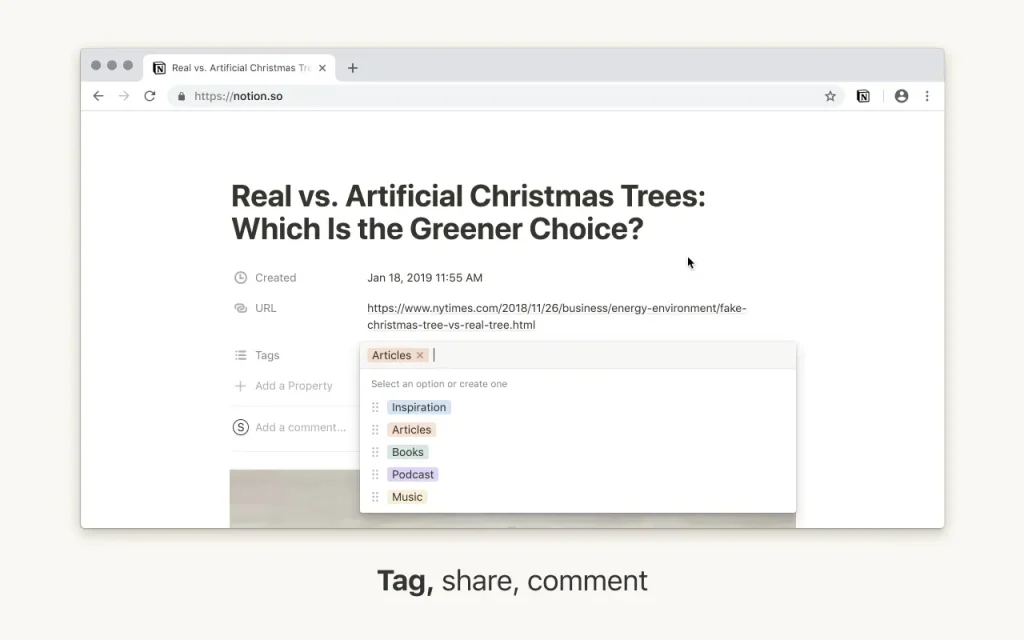
Notion Web Clipper is designed to help you quickly save webpages, articles, and images directly into your Notion workspace. It can turn the internet into a library of resources for your projects, research, or reading lists.
Key Features:
- One-Click Saving: It captures the URL and page content of the website you are currently viewing.
- Database Selection: You can choose the workspace and specific database (e.g., “Reading List” or “Research”) to save the content.
- Content Extraction: It only extracts the main body text and images of an article, stripping away ads and sidebars for a clean reading experience inside Notion.
- Tagging and Organization: You can add titles and basic notes to the clip before hitting “Save Page.”
| Users: 1,000,000+ | Ratings: 3.3 |
| Pros: Seamless integration, clean layout, speed optimized, and easy to use |
| Cons: Limited customization and no highlight clipping |
| Best For: It’s a great option for students where they can write, plan, collaborate, and get organized. |
Research and Writing Chrome Extensions
Here are some of the best Chrome extensions for students to help them with research and writing.
4. Grammarly

Grammarly is an AI-powered writing assistant that helps you write error-free. It integrates directly into your web browser to provide real-time corrections and suggestions as you type on websites like Gmail, Google Docs, LinkedIn, WordPress, and more.
Key Features:
- Real-Time Proofreading: It automatically detects spelling, grammar, and punctuation mistakes with underlined highlights (Red for errors, Blue for clarity).
- Tone Detector: It analyzes your word choice to tell you how you “sound” (e.g., confident, friendly, diplomatic).
- Generative AI (Pro): You can use prompts to draft emails, summarize long articles, or brainstorm content ideas directly in the browser.
- Plagiarism Checker (Pro): It scans billions of web pages to ensure your work is original and provides proper citations.
- Dialect Support: It allows you to switch between American, British, Canadian, Australian, and Indian English.
| Users: 43,000,000+ | Ratings: 4.5 |
| Pros: Easy to use, educational, highly customizable, and efficient |
| Cons: English only and sometimes struggle with creative writing |
| Best For: It’s a great option for students who want to write error-free articles or essays. |
5. QuillBot

QuillBot is another AI-powered writing assistant that works similarly to Grammarly. It integrates directly into your web browser.
You can use QuillBot’s popular tools—like its paraphraser and grammar checker—across almost any website where you type, including Google Docs, Gmail, LinkedIn, and social media.
Key Features:
- Paraphrasing Tool: This is the core feature of this extension. It can rewrite sentences or entire paragraphs to alter the tone, enhance flow, or clarify complex ideas. It offers various modes like Standard, Fluency, Formal, and Creative.
- Grammar Checker: It helps you write error-free by flagging spelling, punctuation, and grammatical errors.
- Summarizer: This feature helps you summarize long articles, emails, or papers into a brief paragraph or bulleted list of key points.
| Users: 5,000,000+ | Ratings: 4.7 |
| Pros: Easy to use, versatile tones, multi-language support, and efficient |
| Cons: Free restrictions (125-word limit) |
| Best For: It’s a great option for students who want to write error-free articles or essays and rewrite sentences. |
Reading and Comprehension Tools
Here are some of the best reading and comprehension tools to read and learn confidently.
6. Dark Reader
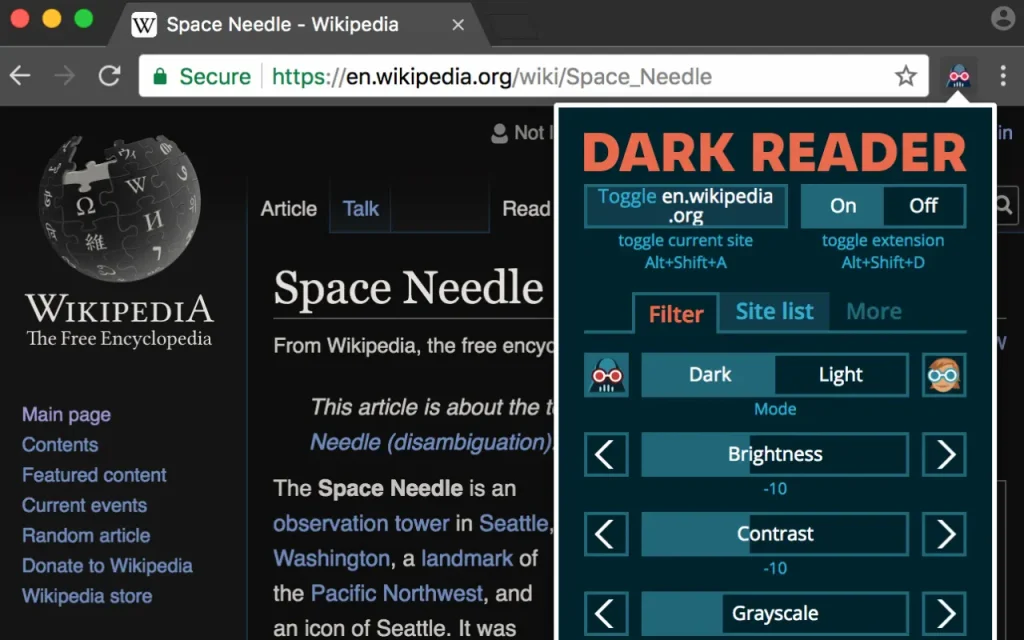
Dark Reader is an essential Chrome browser extension for students designed to protect their eyes by enabling a “dark mode” on every website you visit. It analyzes web pages to generate high-contrast, easy-to-read dark themes on the fly.
Key Features:
- Dynamic Theme Generation: It analyzes site styles to ensure backgrounds are dark and text remains readable without looking like a “negative” photo.
- Customizable Filters: You can fine-tune your experience with sliders for Brightness, Contrast, Sepia, and Grayscale.
- Site-Specific Settings: Enable or disable the extension for specific websites or set unique brightness levels for individual pages.
- Scheduling: You can set it to activate automatically at sunset, during specific hours, or to sync with your system’s global dark mode settings.
- Font Customization: You can change the font and text stroke (boldness) of any website to improve readability.
| Users: 6,000,000+ | Ratings: 4.7 |
| Pros: Easy to use, universal compatibility, no ads/privacy-focused, and highly customizable |
| Cons: Slow down web page loading and occasional visual bugs |
| Best For: It’s a great option for students who want to read web pages with dark mode. |
7. Read Aloud: A Text to Speech Voice Reader
Read Aloud is a text-to-speech Chrome browser extension that converts webpage text into audio. It is widely used by students, professionals, and individuals with visual impairments or dyslexia to consume written content hands-free.
Key Features:
- Broad Compatibility: It works on almost any website, including news sites, blogs, and specialized platforms (Google Docs, PDFs, Amazon Kindle, and Google Play Books).
- Voice Variety: It offers a choice between standard “native” browser voices and high-quality “cloud” voices from providers like Google Wavenet, Amazon Polly, IBM Watson, and Microsoft.
- Customization: You can adjust the reading speed, pitch, and volume to their preference.
- Text Highlighting: It visually highlights the text as it is being read, making it easier for users to follow along.
- Smart Content Detection: It is designed to skip “clutter” like ads, navigation menus, and sidebars to focus on the main article text.
- Multilingual Support: It supports over 40 languages, making it useful for language learners.
| Users: 6,000,000+ | Ratings: 4.1 |
| Pros: Open-source, ease of use, versatile formats, and privacy-focused |
| Cons: Robotic voices |
| Best For: It’s a great option for students with visual impairments or dyslexia. |
Study and Learning Enhancement Extensions
Here are some of the best Chrome browser extensions that help students to enhance their learning experience.
8. Kami for Google Chrome
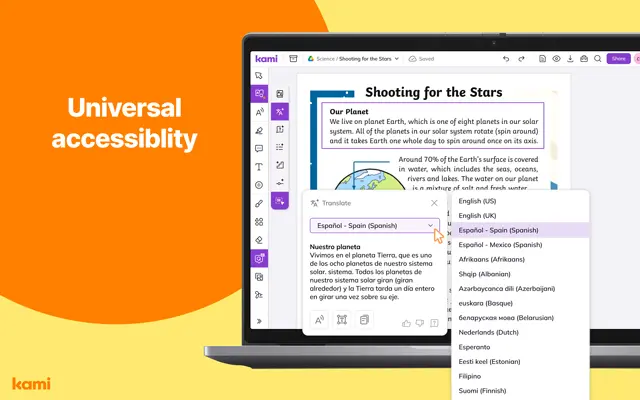
Kami is a Chrome browser extension that empowers students and enhances the way teachers teach, feedback, and assess. It acts as a digital classroom that allows users to annotate, edit, and collaborate on documents (primarily PDFs) in real-time.
Key Features:
- Advanced Annotation: You can use highlighters, drawing tools, shapes, and strikethroughs. It also includes specialized STEM tools like an equation editor, protractor, and ruler.
- Multimedia Feedback: Teachers can leave feedback using voice, video, or screen capture comments.
- AI-Powered Tools: It includes Question AI, which can automatically generate auto-graded questions or assessments based on the content of your document.
- Accessibility Suite: It features Text-to-Speech (Read Aloud), Speech-to-Text (Voice Typing), Dyslexia-friendly fonts, a built-in dictionary, and a “Split and Merge” tool to remix pages from different files.
- Real-Time Collaboration: Multiple students can work on the same document simultaneously.
| Users: 21,000,000+ | Ratings: 4.6 |
| Pros: Paperless classroom, superior accessibility, seamless workflow, and interactive engagement |
| Cons: Many features unlock with paid plans |
| Best For: It’s a great option for students who want visual and hands-free learning. |
9. Knowt: Quizlet Import, AI Notes & Flashcards
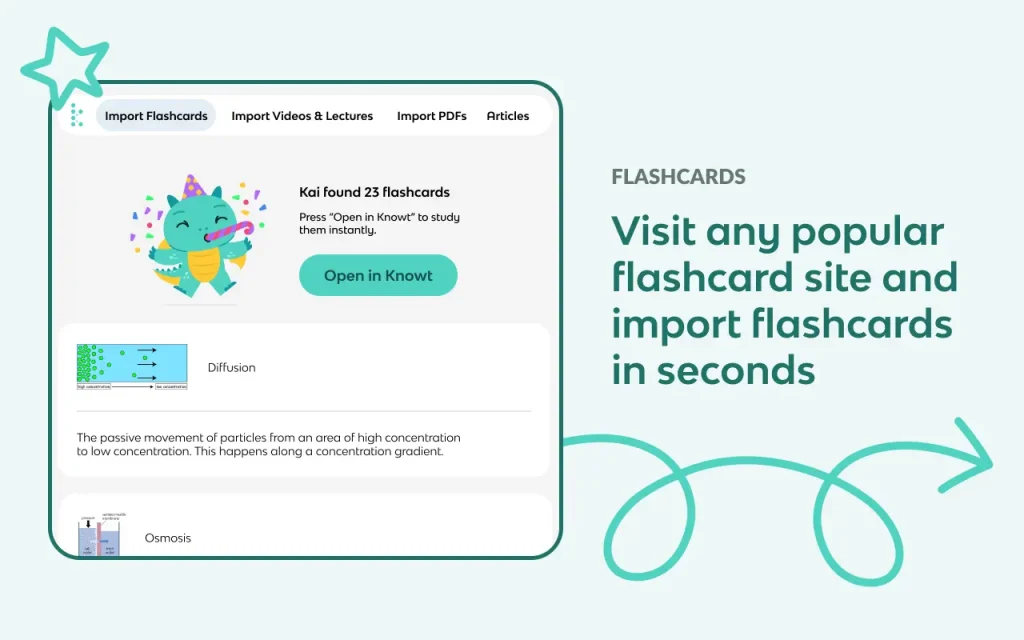
Knowt is an AI-powered study tool that allows users to instantly convert online resources—like YouTube lectures, articles, and PDFs—into interactive study materials. It is widely considered the top free alternative to Quizlet.
Key Features:
- One-Click Quizlet Import: It allows you to migrate all your Quizlet sets to Knowt instantly, bypassing Quizlet’s paywalls for features like “Learn Mode.”
- AI Video Summarizer: While watching a YouTube lecture, you can use the extension to generate a bulleted summary, key terms, and flashcards.
- Instant Flashcard Generation: You can highlight text on any webpage or upload a PDF to have the AI (named “Kai”) create a deck of flashcards automatically.
- Web-to-Note Sync: It allows you to “clip” information from the web and send it directly to your Knowt notes editor.
| Users: 200,000+ | Ratings: 4.9 |
| Pros: Generous free tier, fast processing, platform versatility, and accuracy |
| Cons: Intrusive ads and steeper learning curve |
| Best For: It’s a great option for students to create flashcards and notes from any video, PDF, article, or flashcard site. |
10. MyBib: Free Citation Generator
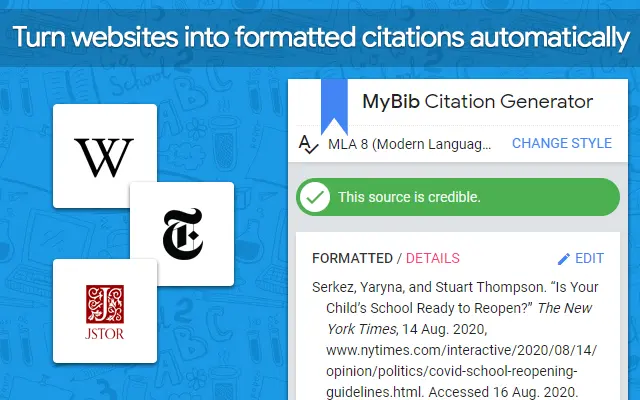
MyBib is a useful Chrome browser extension designed to help students and researchers generate accurate bibliographies and citations instantly while browsing the web. It’s a free alternative to commercial tools like EasyBib or Citation Machine.
Key Features:
- One-Click Web Citation: It automatically extracts metadata (title, author, date, etc.) from the website you are visiting and formats it into a citation.
- Support for 9,000+ Styles: It includes all major styles like APA (7th ed.), MLA (9th ed.), Harvard, Chicago, and AMA, as well as niche university-specific styles.
- PDF Support: It can identify and cite PDF files opened within the Chrome browser.
- Export Options: You can copy-paste citations directly, download them as a Word document, or save them directly to your Google Drive.
- In-text Citations: Generates both the full bibliography entry and the corresponding in-text citation (parenthetical).
| Users: 1,000,000+ | Ratings: 4.8 |
| Pros: Clean interface, privacy-focused, accuracy, and direct integration |
| Cons: Occasional metadata errors |
| Best For: It’s a great option for high school and undergraduate students to generate accurate citations in multiple formats. |
Online Classes and Collaboration Tools
Here are some of the best Chrome extensions that help students with online classes and collaborate with fellow students.
11. Loom – Screen Recorder & Screen Capture
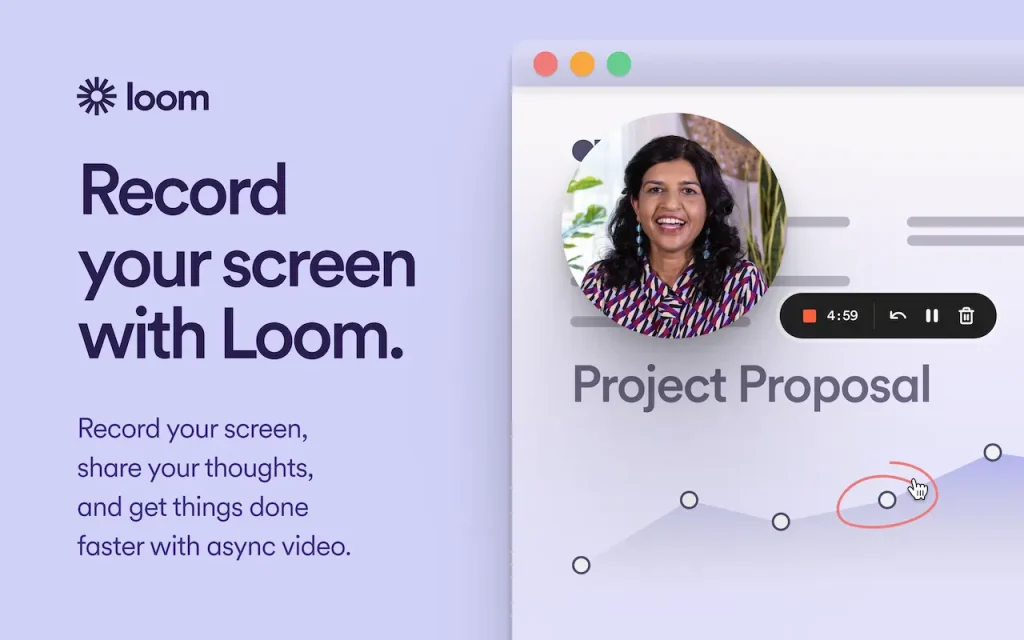
Loom is an asynchronous video messaging platform that allows you to record your screen, camera, and microphone simultaneously. It’s a handy tool for students to explain concepts, share presentations, or collaborate with classmates.
Key Features:
- Instant Sharing: It automatically saves videos to the cloud as soon as you stop recording. You get a shareable link immediately—no waiting for rendering or manual uploads.
- Dual Capture: It allows you to record your screen and camera at the same time to add a personal touch.
- Interactive Engagement: Viewers can leave time-stamped comments and emoji reactions directly on the video timeline.
- Live Rewind: You can pause, rewind, and re-record over a mistake without starting from scratch—exclusive to the Chrome extension and desktop app.
- Pre-Recording: You can record a presentation with Loom and send it to your audience ahead of time.
| Users: 8,000,000+ | Ratings: 4.6 |
| Pros: Ease of use, cloud storage, and async efficiency |
| Cons: Strict free limit and basic editing |
| Best For: It’s a great option for students to record presentations and share with others. |
Language and Skill-Building Extensions
Here are some of the best Chrome extensions that help students build language skills.
12. LanguageTool

LanguageTool is an AI-powered writing assistant that helps students with sophisticated grammar, style, and spell checking. Unlike other grammar checker tools, it is known for its multilingual capabilities.
Students can use this tool to write in multiple languages, which can enhance their language learning skills.
Key Features:
- Multilingual Support: It supports over 30 languages, including English, Spanish, French, German, Portuguese, and many more. It can even detect the language you are writing in automatically.
- Advanced Grammar & Spell Check: It identifies complex issues like “their/there” confusion, split infinitives, and subject-verb agreement.
- AI-Powered Rephrasing: It utilizes AI to provide suggestions on how to condense a sentence, make it more formal, or enhance its fluency.
- Personal Dictionary: You can add specific names, technical terms, or brand names to your “ignored” list so they aren’t flagged as errors.
- Integration: It works seamlessly across Gmail, LinkedIn, Google Docs, WordPress, and almost any text field in Chrome.
| Users: 3,000,000+ | Ratings: 4.7 |
| Pros: Multilingualism, privacy-focused, no account required, and a clean interface |
| Cons: Limited free version (10,000-character limit) |
| Best For: It’s a great option for students who want to write in multiple languages. |
13. Toucan by Babbel
Toucan by Babbel is a Chrome extension that helps you learn a new language through “contextual immersion.” It teaches new languages by blending them into your online activities.
Key Features:
- Contextual Translation: When you visit any website, Toucan automatically swaps specific words and phrases on the page into the language you are learning.
- Saved Words: You can see any word definition by hovering over the translated word. Also, you can hear the audio pronunciation, and “Save” it to your personal vocabulary list for later review.
- Shortcuts: This feature teaches you words and phrases for common situations, like ordering food at a restaurant or finding the bathroom.
- Extra Practice: It inserts mini practice sessions into Google, Twitter, and Reddit to help you master grammar and verb conjugations in context.
- Mini-Games & Quizzes: Built-in micro-moments of learning that test your retention without requiring a full study session.
| Users: 200,000+ | Ratings: 4.6 |
| Pros: Strong vocabulary builder, customizable, multiple language support, and effortless learning |
| Cons: Limited grammar and sometimes inaccurate context |
| Best For: It’s a great option for students who want to learn new languages while browsing the web. |
FAQs
Here are some of the common questions students ask about Chrome extensions.
Are Chrome extensions safe for students?
Yes, they are generally safe for students. Google has made significant strides with security standards (like Manifest V3), but “safe” still depends on what you install and how much access you give it.
Can Chrome extensions slow down my browser?
Extensions add “superpowers” to your browser; they are essentially extra layers of code running on top of every website you visit. If you install too many extensions, they will drain your RAM, which will slow down your browser.
Can I use Chrome extensions on school computers?
It depends on your school’s IT policy, but in most cases, the ability to add extensions is heavily restricted.
Conclusion
As you can see, Chrome extensions can enhance how students learn, focus, and succeed. When used wisely, they transform your browser into a powerful academic assistant.
You can choose the best extensions that you need. Please refrain from installing unnecessary extensions. They can slow down your browser.
What do you think about these Chrome extensions for students? Let me know in the comments.
Recommended Articles: