

Want to enhance your WordPress experience? Yes? Here are some of the best Chrome extensions for WordPress users.
If you’re a WordPress user—whether as a blogger, developer, designer, or site owner—you already know one thing: WordPress is powerful, but it can also be time-consuming.
That’s where Chrome extensions come in. They live inside your browser and help you do things faster, smarter, and with fewer clicks. Instead of juggling between multiple tools, dashboards, and websites, these extensions bring critical features right to your screen.
WordPress isn’t just a platform—it’s an ecosystem. You’re dealing with themes, plugins, hosting, analytics, content editors, and third-party tools all at once.
You can install WordPress plugins to increase your website functionality. However, using too many plugins can slow down your site. For this reason, Chrome extensions are better options for WordPress users.
In this post, we’ll explore some of the best Chrome extensions for WordPress, carefully categorized based on real-world use cases.
Table of Contents
The Best Chrome Extensions for WordPress Developers
Here are some of the best Chrome extensions for WordPress developers to streamline their workflow.
1. JSON Formatter
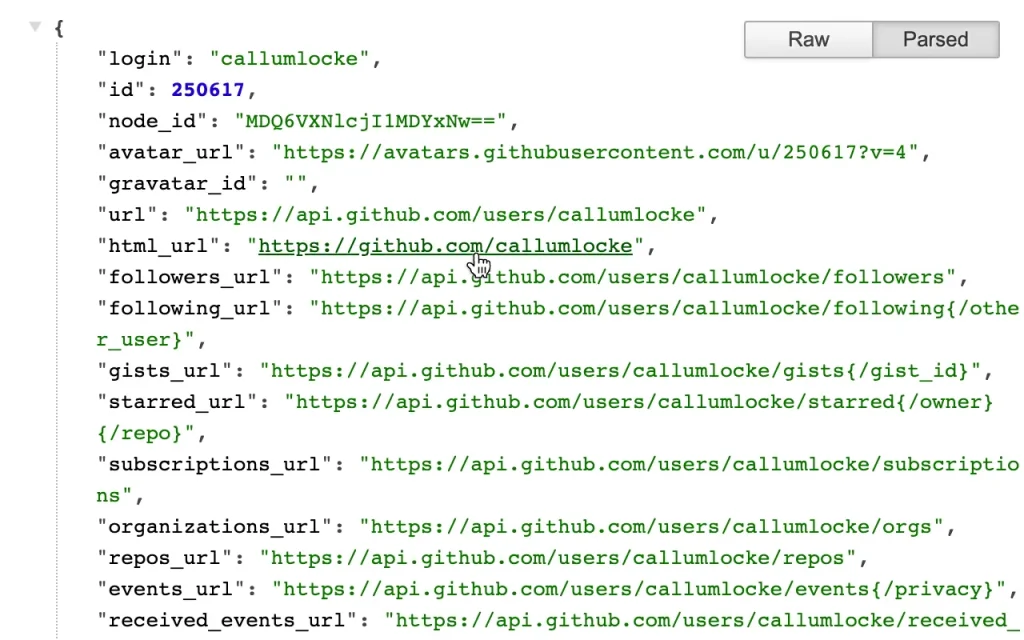
JSON Formatter is a useful Chrome extension used by developers to make raw JSON data readable. It is a popular, open-source tool developed by Callum Locke.
When you visit a URL that returns a JSON response (like an API), browsers normally display it as a single, messy wall of text. This extension automatically intercepts that data and formats it into a clean, organized, and colorful tree structure.
Key Features:
- Automatic Parsing: The key feature of this extension is to detect JSON content on any page and format it instantly without requiring manual input.
- Syntax Highlighting: Display different data types (strings, numbers, booleans, nulls) are color-coded for quick visual scanning.
- Collapsible Trees: You can navigate large datasets by expanding or collapsing nested objects and arrays.
- Raw vs. Parsed Toggle: It includes a button for toggling between raw and parsed JSON. It’s a handy feature if you need to copy the original unformatted string.
- Clickable Links: The extension automatically converts URLs found within the JSON into clickable links.
- Offline Support: You can work on local files (
file://) if you enable the “Allow access to file URLs” setting in Chrome. - Dark & Light Themes: Switch between dark and light themes to match your coding environment.
| Users: 2,000,000+ |
| Pricing: Free |
| Pros: Lightweight, zero setup, privacy-focused, and readability |
| Cons: Works in Google Chrome or other Chromium-based browsers and lacks advanced features |
2. ColorZilla
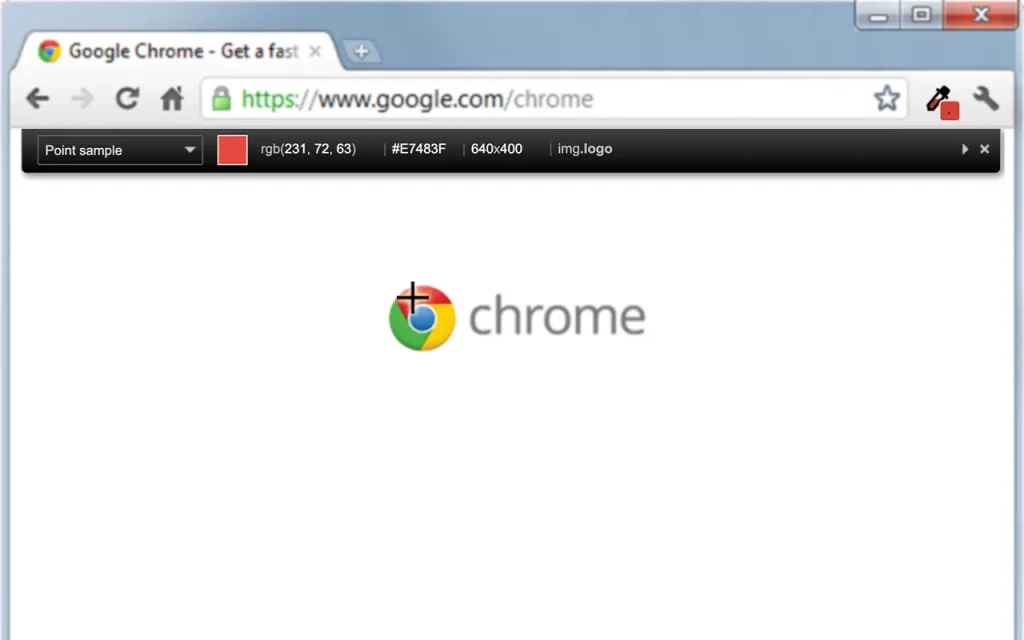
ColorZilla is the most popular and long-standing browser extension for web developers, graphic designers, and digital artists. It is an all-in-one color tool that allows users to identify, analyze, and manipulate colors directly within their browser.
Originally, it was developed for Firefox and later brought to Chrome.
Key Features:
- Eyedropper (Color Picker): This is the core feature. You can click any pixel on a webpage, and ColorZilla will tell you the exact color code (Hex, RGB, etc.).
- Advanced Color Picker: Similar to Photoshop, it enables you to manually tweak colors, adjust hues, and find the perfect shade.
- Ultimate CSS Gradient Generator: Allows you to create complex CSS gradients through a visual interface and automatically generates the code to paste into your stylesheets.
- Webpage Color Analyzer: This feature is crucial for conducting competitive research or maintaining brand consistency. It scans an entire webpage and provides a palette of every color used on that site.
- Color History: It automatically saves the colors you have picked, so you don’t have to worry about losing a specific shade if you forget to copy the code.
- Palette Viewer: It includes seven pre-installed palettes and allows you to create and save your own custom palettes.
| Users: 4,000,000+ |
| Pricing: Free |
| Pros: Versatile, accurate, user-friendly, time-saving, and cross-browser support |
| Cons: Outdated UI (User Interface) and browser restrictions |
3. WhatFont
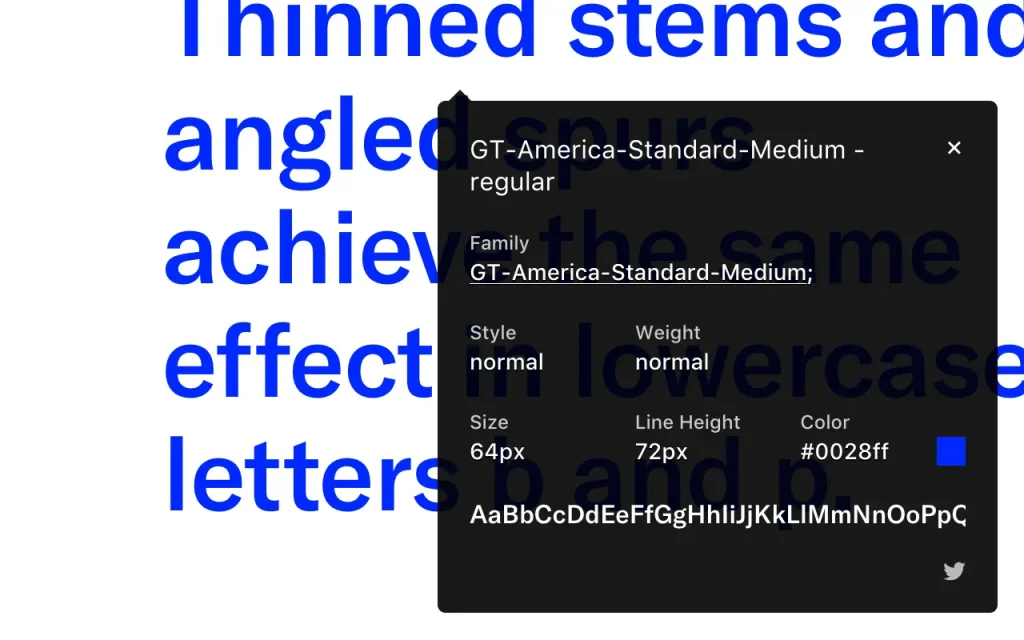
WhatFont is a popular browser extension designed for web designers, developers, and typography enthusiasts. It allows users to identify the fonts used on any website by hovering over text.
Key Features:
- Instant Identification: You can see the information about the font by activating the extension and hovering your cursor over any text.
- Detailed Typography Info: A small sticky panel appears when you click on the text, providing in-depth data, including:
- Font Family
- Font Size
- Line Height
- Font Weight
- Text Color
- Web Font Service: It can detect which service is being used to serve the font, such as Google Fonts or Adobe Fonts.
| Users: 3,000,000+ |
| Pricing: Free |
| Pros: Simple & fast, accurate, lightweight, and visual comparison |
| Cons: Must activate the extension, and it is limited to web text |
The Best Chrome Extensions for WordPress Content Writers
If you’re a blogger or a content writer in WordPress, here are some of the useful Chrome extensions to enhance your writing skills.
4. Grammarly

Grammarly is a handy tool for content writers. It’s an AI-powered writing assistant for Chrome to write error-free content.
It scans your text in real-time as you type to find grammatical mistakes. It works on almost all websites, including Gmail, Google Docs, LinkedIn, and WordPress.
It has evolved from a basic grammar checker to a comprehensive AI writing partner that supports multiple languages and advanced generative tasks.
Key Features:
- Real-Time Correction: It instantly catches typos, complex grammar errors, and punctuation mistakes using color-coded underlines.
- Generative AI (Premium): AI-powered functionality to help you brainstorm outlines, draft entire emails, or rewrite paragraphs to be more professional or friendly with a single click.
- Tone Detector: It analyzes your word choice to show how you likely sound to a reader (e.g., confident, appreciative, or urgent) using emojis.
- Plagiarism Checker (Premium): It scans your paragraphs against billions of web pages and academic databases to ensure original content.
| Users: 43,000,000+ |
| Pricing: Free + Premium (starting from $12/mo) |
| Pros: Highly accurate, user-friendly, educational, and works everywhere |
| Cons: English first and no offline mode |
5. Word Counter Plus
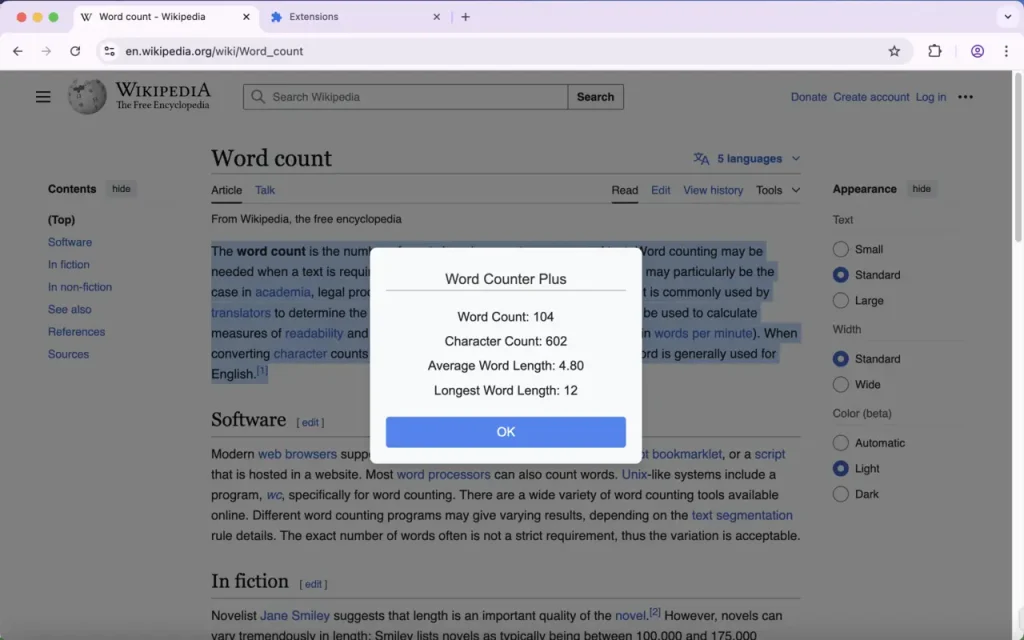
Word Counter Plus is a handy Chrome extension for writers, students, and professionals who need a quick way to check text statistics without leaving their current tab.
It integrates directly into your browser’s right-click menu for instant access.
Key Features:
- Word & Character Count: The core feature of this extension. When you highlight text and right-click to use the extension, it provides a pop-up with the following data:
- Word Count
- Character Count
- Characters (No Spaces)
- Average Word Length
- Longest Word
| Users: 3,000+ |
| Pricing: Free |
| Pros: Highly accurate, user-friendly, privacy-focused, and lightweight |
| Cons: Limited features and no toolbar icon |
The Best Chrome Extensions for WordPress SEO Optimization
Here are some of the best Chrome extensions useful for WordPress SEO optimization.
6. Keywords Everywhere
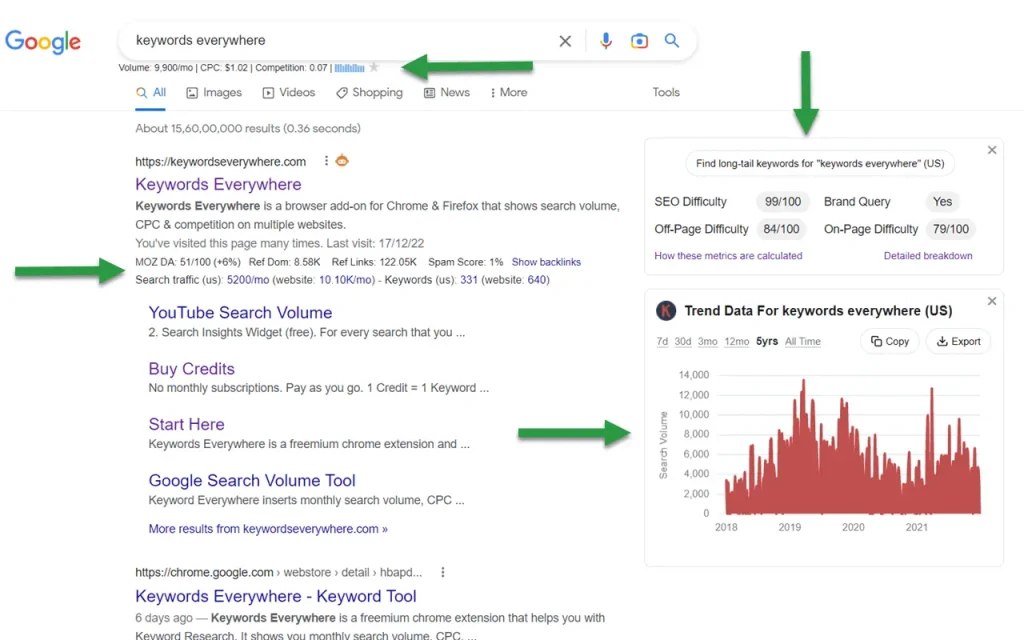
Keywords Everywhere is a handy Chrome extension designed to simplify keyword research. If you’re a WordPress content writer, you need this extension.
Unlike other keyword research tools that require you to log in to separate dashboards, it injects keyword data directly into the websites you already use, such as Google, YouTube, and Amazon.
Key Features:
- Keyword Metrics: This feature displays Search Volume (monthly average), CPC (Cost Per Click), and Competition (rated on a 0–1 scale) directly below the search bar.
- Trend Charts (Premium): You can view historical search volume trends dating back to 2004 for Google and YouTube to identify seasonal or dying trends.
- Keyword Widgets: On the right side of Google search results, it shows:
- Related Keywords
- People Also Search For (PASF)
- Long-Tail Keywords
- Topical Keywords
- SEO & Domain Metrics: Integrates Moz Link Metrics (Domain Authority, Spam Score) and provides on-page analysis to see keyword density on any URL. You don’t need a separate extension to check domain authority.
| Users: 1,000,000+ |
| Pricing: Free + Premium (starting from $60/yr) |
| Pros: Seamless workflow, highly affordable, multi-platform support, and trend charts |
| Cons: Limited free version and no “Deep” SEO features |
7. Detailed SEO Extension
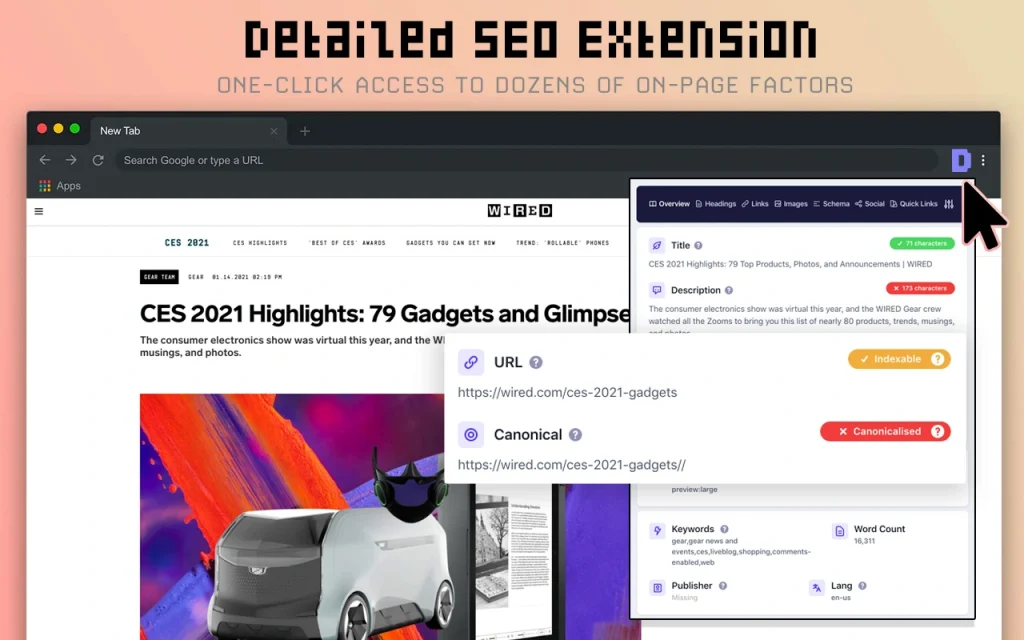
Detailed SEO Extension is a handy tool for SEO professionals and website owners. It provides a comprehensive, “one-click” on-page SEO audit of any webpage you are currently visiting.
It was developed by Glen Allsopp and later acquired/maintained by Ahrefs. It’s designed to save time by pulling critical data into a clean interface.
Key Features:
- Overview: Displays the Title Tag (and its length), Meta Description, URL, Canonical Tag, and Robots Meta Tag (index/noindex status).
- Headings: Shows the complete heading hierarchy (H1 through H6).
- Links: Provides a count of total internal vs. external links on the page.
- Images: Displays the total number of images and identifies how many are missing Alt text or Title tags.
- Schema/Structured Data: Detects and displays the Schema markup present on the page (e.g., FAQ, Article, Product, Organization).
- Quick Links: Provides shortcuts to open the current URL in popular third-party tools like Ahrefs, Semrush, and Google PageSpeed Insights.
- Social: It analyzes Open Graph tags and Twitter Cards to show how the page will look when shared on social media.
| Users: 500,000+ |
| Pricing: Free |
| Pros: Speed & performance, clean UI, privacy-focused, and cross-browser compatible |
| Cons: Single page only and no keyword data |
8. SEO Search Simulator by Nightwatch
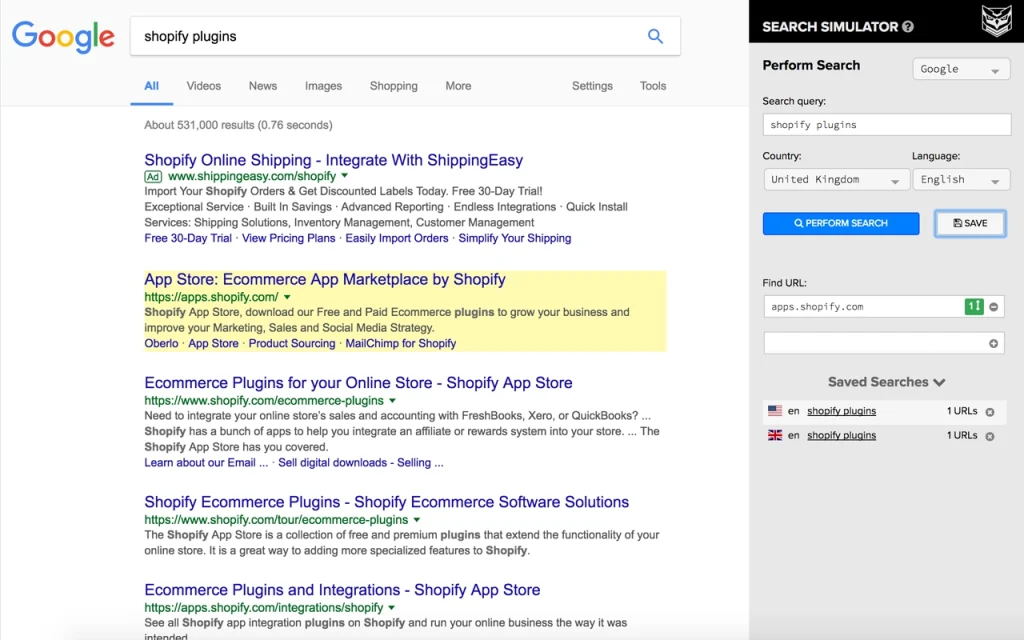
SEO Search Simulator is a free Chrome extension designed for SEO professionals and website owners to check their keyword rankings in any location worldwide.
Key Features:
- Unbiased Geo-Location Simulation: Simulate Google searches from any specific country, region, or city without needing a VPN or proxy.
- Language Support: It views results in over 100 different languages to see how international rankings differ.
- URL Highlighting: You can input your domain or a competitor’s, and the tool will automatically highlight it in the search results and show you exactly what position it holds.
- Saved Searches: You can save your frequently used search configurations (keyword, location, and language) to rerun them later quickly.
- Device Simulation: Check how results appear on different devices, such as desktop vs. mobile.
| Users: 90,000+ |
| Pricing: Free |
| Pros: Ease of use, unbiased personalization, competitor insights, and free |
| Cons: Limited to Google and rate limits/captchas |
The Best Chrome Extension for WordPress Performance Optimization
Performance optimization is crucial for WordPress websites to achieve higher rankings in search engine results. Here is the best Chrome extension for performance optimization.
9. Lighthouse
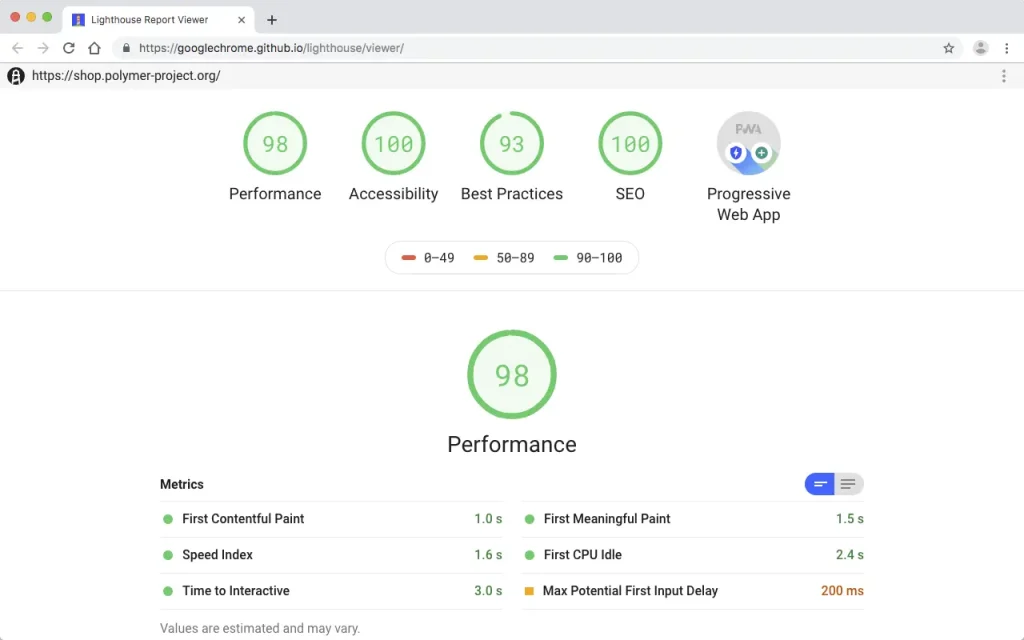
Lighthouse is an open-source, automated tool developed by Google to help web developers and site owners improve the performance of their web pages.
It runs a series of audits against a URL and generates a detailed report on how well the page performs across several key categories.
While Lighthouse is built directly into Chrome’s “Inspect” (DevTools) panel, the extension provides a quick, one-click way to run these reports without opening the developer console.
Key Features:
- Performance: It analyzes how quickly your page loads and becomes interactive. It measures “Core Web Vitals” like Largest Contentful Paint (LCP) and Cumulative Layout Shift (CLS).
- Accessibility: It checks if your site is usable for people with disabilities. It looks for things like high color contrast, image alt text, and proper heading structures.
- Best Practices: It ensures your site follows modern web standards, such as using HTTPS, avoiding deprecated APIs, and ensuring secure image aspect ratios.
- SEO (Search Engine Optimization): It performs basic checks to ensure search engines can crawl your page effectively.
| Users: 1,000,000+ |
| Pricing: Free |
| Pros: Ease of use, actionable insights, developer-friendly, and local support |
| Cons: Variable score and over-optimization risk |
The Best Chrome Extension for WordPress Social Media Integration
If you’re a WordPress content creator, you need to share it with others. Here is the best Chrome extension for WordPress social media integration.
10. Buffer
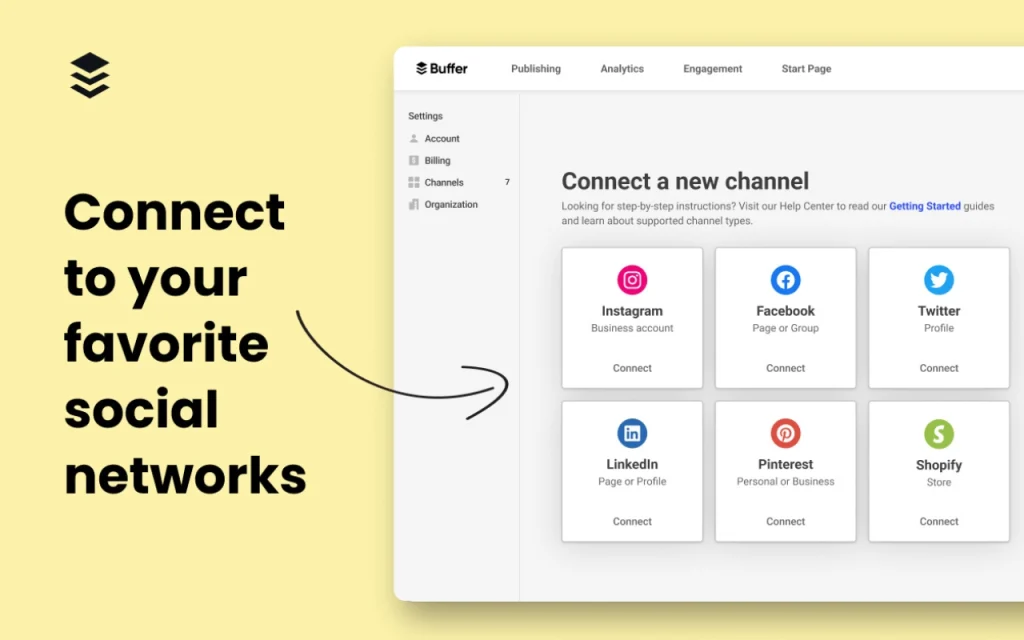
The Buffer Chrome extension allows you to share content, images, and text to your social media queues directly from any webpage without needing to open the Buffer website.
Key Features:
- One-Click Sharing: You can share your content by clicking the Buffer icon on your browser toolbar.
- Highlight to Share: Highlight any text on a webpage, right-click, and select “Buffer Selected Text” to turn a quote into a social post automatically.
- Image Grabbing: Hover over any image on a web page and click the “Share Image” button that appears to post it directly to your social profiles.
- “Add to Queue”: It integrates with your pre-set Buffer posting schedule, automatically slotting the new post into the next available time.
| Users: 200,000+ |
| Pricing: Free + Premium (starting from $6/mo) |
| Pros: Workflow efficiency, clean interface, and makes social media integration easy |
| Cons: Limited free tier and occasional glitches |
Frequently Asked Questions
Here are some of the common queries about the best Chrome extensions for WordPress users.
Are Chrome extensions better than WordPress plugins?
Both serve different purposes. While extensions work within your browser, WordPress plugins directly affect your site.
Can Chrome extensions slow down my browser?
Yes, if you install too many extensions. They can act like digital “roommates”—some are helpful and tidy, while others leave their dirty dishes (CPU cycles) everywhere and hog the couch (RAM).
Are Chrome extensions safe for WordPress users?
Most Chrome extensions are safe to use. However, you must review permissions and only install from the Chrome Web Store.
Final Thoughts
Chrome extensions can enhance your WordPress experience and streamline your workflow by choosing the right tools.
What do you think about these Chrome extensions? Do you have recommendations? Let me know in the comments.
Recommended Articles: