

Are you looking for the best screenshot extensions for Chrome? Yes? Here are some of the best screenshot extensions for full-page snapshots.
Screenshot extensions are great for documenting bugs, creating tutorials, or sharing visual feedback that can supercharge your workflow. With hundreds of options in the Chrome Web Store, finding the right tool can be overwhelming.
For that reason, we’ve compiled a list of the best screenshot extensions for Chrome users. We’ve researched the 4+ star screenshot options in the Chrome Web Store to recommend only the best ones.
Table of Contents
What Makes a Good Screenshot Extension?
Chrome Web Store is filled with hundreds of screenshot extensions. Not every extension is worth trying.
A good screenshot extension is a blend of powerful capture modes, an excellent annotation suite, seamless sharing capabilities, and high performance.
Here are some key features that make a good screenshot extension:
- Capturing Flexibility: A good screenshot extension should offer versatile capture modes, such as full-page scrolling capture, selected area/region, visible part, element capture, and delay/timed capture.
- Editing Capability: The true value of a screenshot extension often lies in what you can do after the capture. An ideal extension should offer tools such as arrows, shapes, text, highlights, blue effects, and cropping.
- Sharing, Storage & Workflow: A good screenshot extension provides a smooth workflow by offering features like:
- Instant Sharing Link: Automatically provides a unique, instant shareable URL of the screenshot.
- Export Options: Supports multiple file formats like PNG, JPG, and PDF.
- Cloud Integration: Direct saving options for services like Google Drive, Dropbox, or proprietary cloud storage.
- Copy to Clipboard: Automatically copy the captured image to the clipboard, ready to paste into any application.
- Performance & Usability: It’s essential for a good screenshot extension to offer high performance and usability, as it’s used dozens of times a day.
- Speed and Reliability: The extension must be lightweight and fast, without noticeable lag or causing the browser to freeze, especially when capturing long pages.
- Keyboard Shortcuts: Customizable and intuitive shortcuts for initiating different capture modes.
- Clean Interface: A good screenshot extension should have a simple, modern, and easy-to-learn interface.
- Privacy Model: The best extensions don’t require unnecessary access to your browsing history or data.
A good screenshot extension should offer these features for a smooth workflow.
The Best Screenshot Extensions for Chrome
| Extension | Pricing | Best For | Rating (CWS) |
|---|---|---|---|
| Lightshot | Free | Quick basic screenshots | 4.4 |
| GoFullPage | Free + Premium (Approximately $1/mo) | Long webpage screenshots | 4.9 |
| Awesome Screen Recorder & Screenshot | Free, Basic ($6/mo), Professional ($8/mo) | Screenshots and recordings | 4.7 |
| Screenshot Tool – Screen Capture & Editor | Free | Basic screenshot tasks | 4.7 |
| Screenshot YouTube | Free | YouTube video screenshots | 4.4 |
| Scribe | Free, Pro Team ($15/mo), Pro Personal ($29/mo) | Creating SOPs, documentation, or tutorials. | 4.8 |
| Chrome Capture – Screenshot & GIF | Free, Premium ($4/mo), Premium Pro ($6/mo) | Screenshots and GIFs | 4.7 |
| FireShot | Free and Lifetime ($59.95) | Full-page screenshots | 4.8 |
| Screenshot – Webpage Screen Capture | Free | Basic screenshots | 4.4 |
1. Lightshot
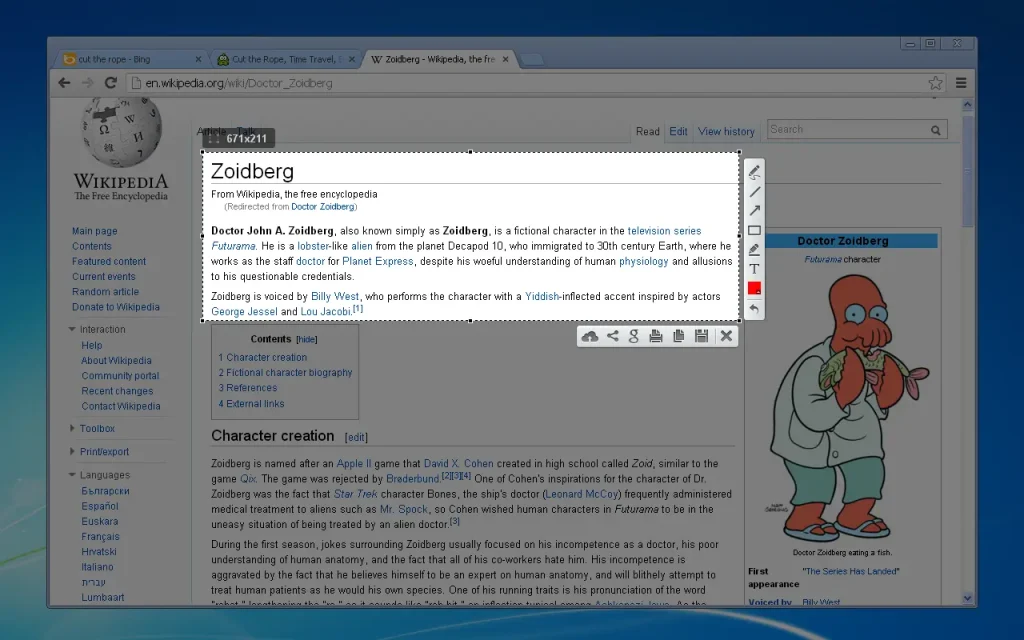
Lightshot is a popular, free, and lightweight application for taking customizable screenshots quickly and easily on Windows, Mac, and as a browser extension (Chrome, Firefox, etc.).
It’s known for its simplicity and for the ability to instantly annotate and share screen captures via a short, unique link.
Key Features:
- Selective Area Capture: It allows users to select a specific area of the screen to capture.
- Instant Annotation/Editing: After the snapshot, a small, in-place editor appears instantly, allowing you to add arrows, lines, rectangles, text, and highlight colors.
- Cloud Upload & Short Link: You can upload the screenshot to the server and immediately receive a short, shareable link.
- Copy to Clipboard: You can copy the screenshot to the clipboard and paste into emails, chat programs, or image editors like Photoshop.
- Search Similar Images: It’s a unique feature that uses the captured image to search for visually similar images on Google (or other engines).
- Customizable Hotkeys: You can customize the Hotkey to activate the capture process.
| Users: 2,000,000+ |
| Pricing: Free |
| Pros: Ease of use, fast sharing, built-in annotation, lightweight, and free |
| Cons: Basic editor, no video/GIF recording, and infrequent updates |
| Best For: It’s an excellent tool for users who need a fast, free, and simple way to capture a specific part of their screen, lightly annotate it, and share it immediately with others. |
2. GoFullPage – Full Page Screen Capture
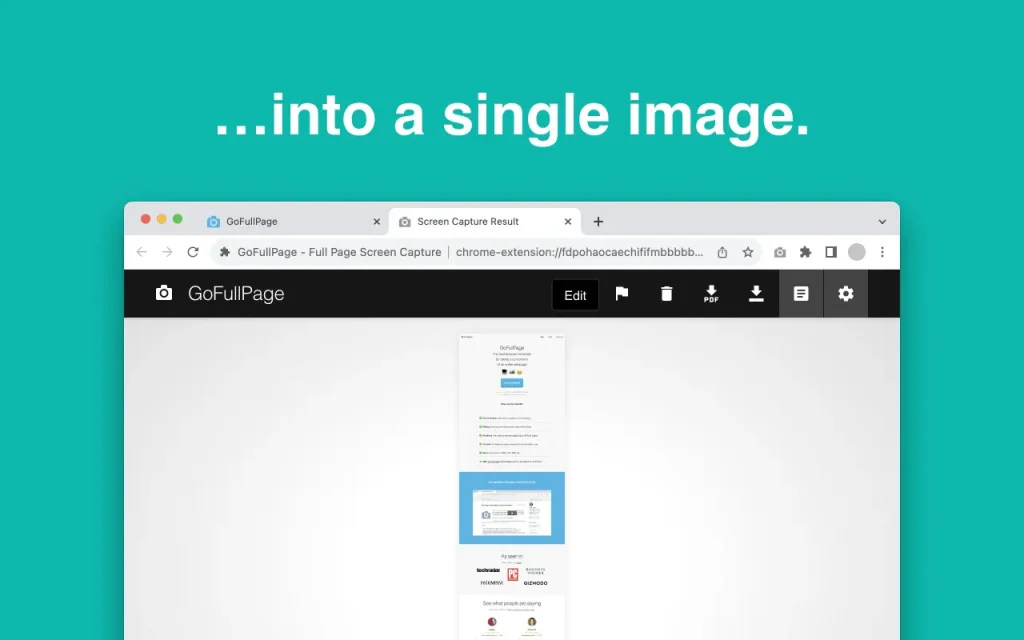
The GoFullPage – Full Page Screen Capture is a handy tool designed for Google Chrome and Microsoft Edge that allows users to capture a screenshot of an entire, scrollable webpage with a single click.
It works by automatically scrolling down the page, taking multiple screenshots, and stitching them together into a high-quality image file.
Key Features:
- Full Page Capture: You can capture the entire page, including what is “below the fold” (the parts requiring scrolling).
- Advanced Scrolling: It can handle complex pages, sticky headers, inner scrollable elements (like in Gmail), and embedded iframes.
- Output Formats: It supports file formats like PNG, JPEG, or PDF.
- Image Editing (Premium): Built-in tools for cropping and resizing the captured image.
- Annotation Tools (Premium): You can add context to screenshots with tools like text, highlighting, shapes, emojis, and blurring sensitive information.
- Privacy & Security: No ads, no bloat, and requires minimal permissions.
| Users: 10,000,000+ |
| Pricing: Free + Premium (Approximately $1/mo) |
| Pros: Highly accurate, simple & fast, privacy-focused, multiple format supports, and handles complex pages |
| Cons: No editing tools with the free version, and only available as an extension |
| Best For: The GoFullPage screenshot tool is a great option for full-page screenshots with PDF export. |
3. Awesome Screen Recorder & Screenshot
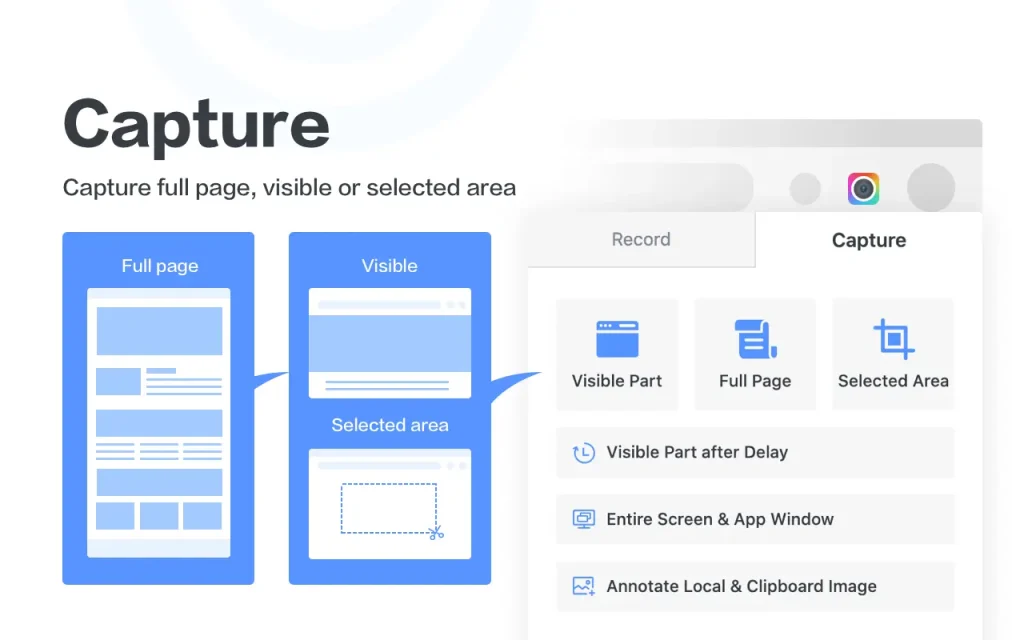
As the name suggests, Awesome Screen Recorder & Screenshot is an all-in-one solution to easily capture, annotate, share, and manage both screenshots and screen recordings.
It’s known as a powerful and highly-rated browser extension (for Chrome, Edge, Firefox, etc.), but also available as a desktop app for Windows and Mac.
This browser extension is widely used by professionals, educators, and teams for reporting bugs, creating tutorials, making product demos, and general visual communication.
Key Features:
- Multiple Capture Modes: You can capture a visible part, a selected area, the entire desktop, or a full-scrolling page.
- Image Annotation: It has a rich set of editing tools to mark up screenshots, such as text, arrows, shapes, blur, highlight, resize, and crop.
- Multiple Export Options: Save as PNG, JPG, or PDF.
- Cloud Storage: Automatically save captures and recordings to the cloud storage.
- Instant Sharing: Instantly generate shareable links for screenshots and recordings.
- Integrations (Premium): Share or send content to popular project management tools like Slack, Trello, Jira, Asana, and Google Drive.
| Users: 3,000,000+ |
| Pricing: Free, Basic ($6/mo), Professional ($8/mo) |
| Pros: User-friendly, full-age capture, annotation tools, and direct sharing |
| Cons: Free plan limitations, and Limited advanced video editing |
| Best For: Awesome Screenshot & Recorder is a suitable option for screenshots and screen recording. |
4. Screenshot Tool – Screen Capture & Editor
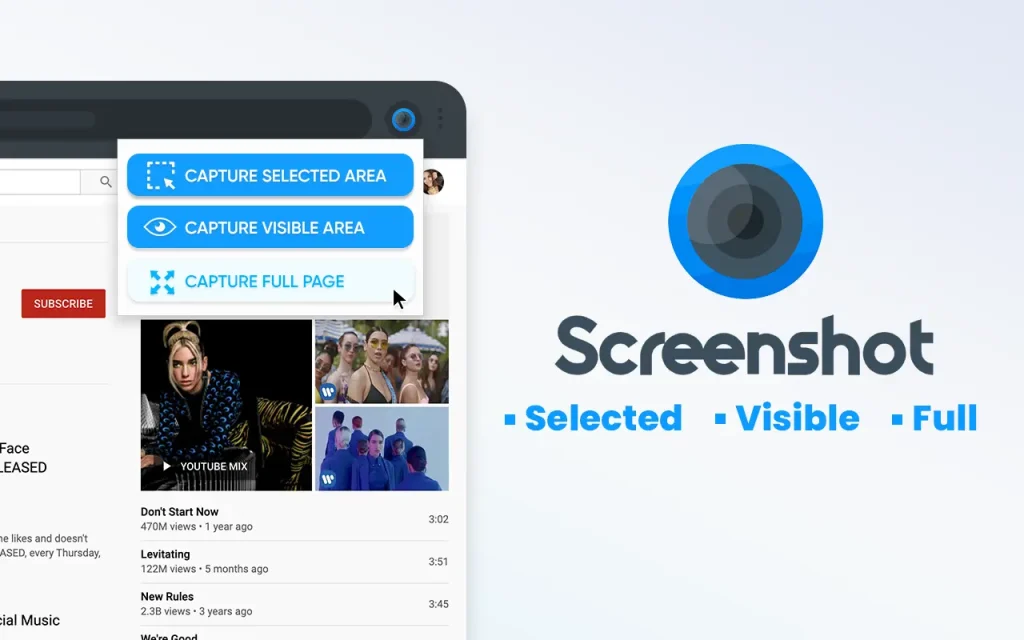
Screenshot Tool is another tool that lets users capture and edit screenshots. It’s known for its versatility and lightweightness.
Key Features:
- Multiple Capture Modes: You can capture full-page, selected area, and visible part.
- Basic Annotations: You can add arrows, text, crop, and paint over your screenshots.
- Export Options: Save PNG files or copy them to the clipboard with one click.
- Offline: It works without an internet connection.
| Users: 1,000,000+ |
| Pricing: Free |
| Pros: Lightweight, no sign-up, basic annotations, and works offline |
| Cons: No keyboard shortcuts and limited features |
| Best For: Screenshot Tool is a perfect browser extension for everyday screenshot tasks. |
5. Screenshot YouTube
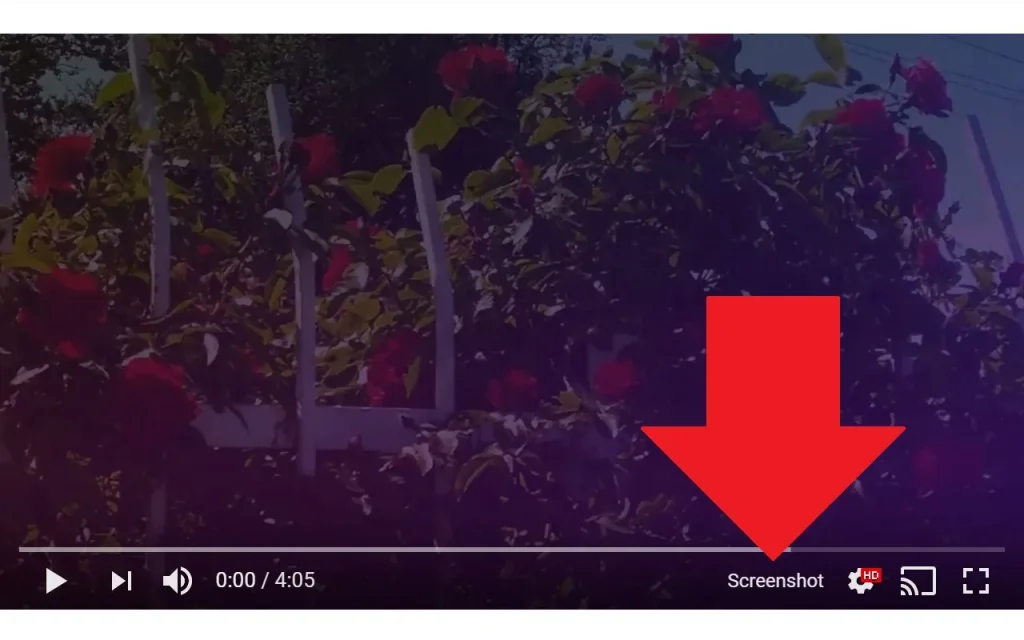
As the name suggests, Screenshot YouTube is an essential tool for anyone who wants to capture high-quality screenshots from YouTube videos.
This browser extension adds a “Screenshot” button to the YouTube video player that saves a screenshot of the currently playing video as a file, copies it to the clipboard, or both.
Key Features:
- One-Click Capture: You can capture a YouTube frame with an added button.
- Playback Controls: You can adjust the video playback speed for precise screenshots with keyboard shortcuts or buttons.
- Open-Source: It’s an open-source software.
| Users: 500,000+ |
| Pricing: Free |
| Pros: One-click screenshots, playback controls, no ads, and free |
| Cons: Only for YouTube and limited features |
| Best For: Screenshot YouTube is an essential tool for capturing high-quality frames from YouTube videos. |
6. Scribe: AI Documentation, SOPs & Screenshots
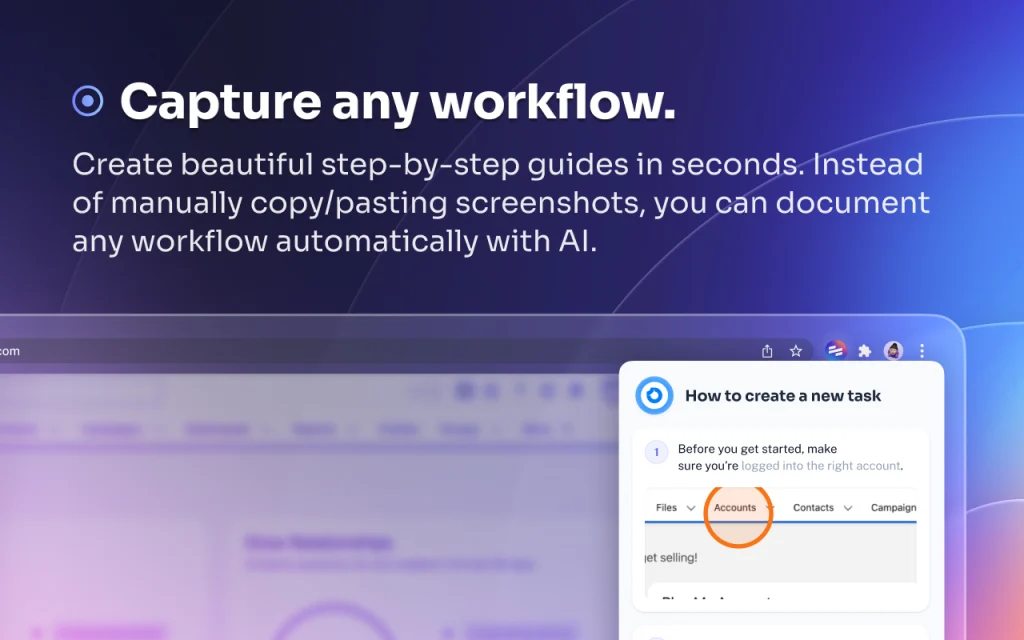
Scribe is an AI-powered tool designed to automatically create step-by-step guides, Standard Operating Procedures (SOPs), and other documentation by recording your actions.
Instead of manually taking screenshots and editing, Scribe’s Workflow AI tool can document any workflow and turn it into a beautiful step-by-step guide.
Key Features:
- Automatic Workflow Capture: Records your clicks, keystrokes, and screen navigation to automatically generate a guide with text instructions and corresponding screenshots for every step.
- Annotated Screenshots: Automatically captures and crops screenshots for each step.
- Sensitive Data Redaction (Premium): Automatically or manually blur/redact sensitive information (such as PII/PHI or passwords) from screenshots.
- Easy Customization & Editing: You can edit, add, delete, and combine steps; update the text; and add expert tips, alerts, or custom branding (logos/colors).
- Multiple Sharing Options: Guides can be shared via a quick link, exported to various formats (PDF, HTML, Markdown, Word), or embedded directly into knowledge bases (like Notion, Confluence, SharePoint, etc.).
| Users: 1,000,000+ |
| Pricing: Free, Pro Team ($15/mo), Pro Personal ($29/mo) |
| Pros: Speed & efficiency, ease of use, multiple export options, and desktop app support |
| Cons: Browser-only in the free tier, and editing screenshots can be clunky |
| Best For: Scribe is a handy tool for professionals and organizations to create SOPs, documentation, or tutorials. |
7. Chrome Capture – Screenshot & GIF
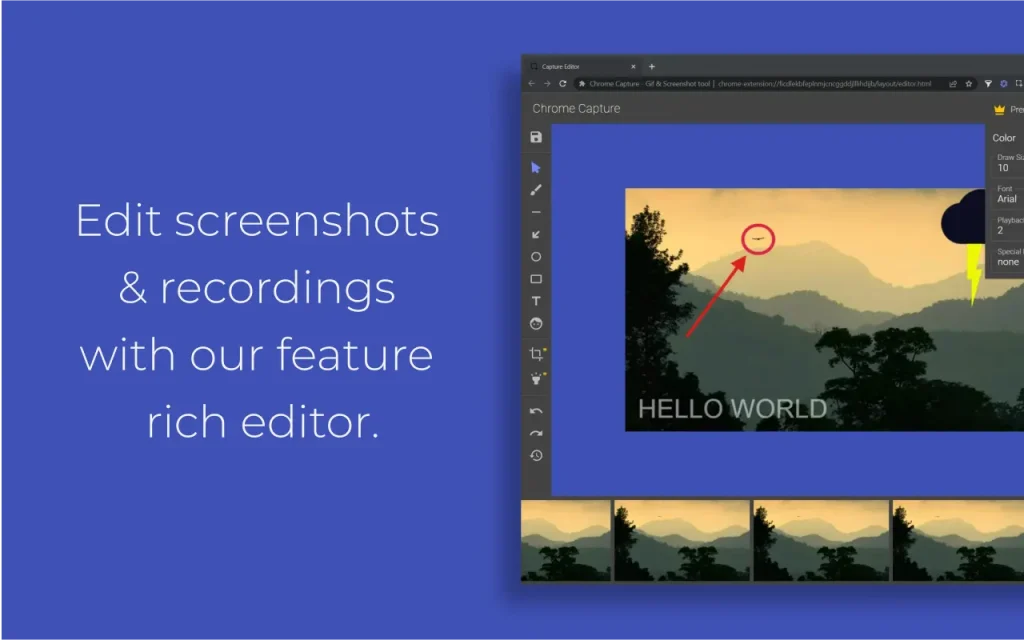
Chrome Capture is another browser extension that allows you to capture screenshots with a GIF feature. It’s an all-in-one extension for anyone needing fast, high-quality screen captures, GIF recordings, and short video creation directly in Chrome.
This browser extension is designed to be a lightweight tool for visual communication, bug reporting, creating tutorials, and general documentation.
Key Features:
- Multiple Capture Modes: You can capture the visible part, a specific area, or a full-page screenshot.
- Export Options: Screenshots are saved as standard image files (e.g., PNG/JPEG).
- Editing & Annotation: You can add text, draw arrows, insert shapes, and use freehand drawing—and other basic editing, like cropping, resizing elements, and blurring sensitive information.
- Cloud Integration: Upload directly to Google Drive and generate a shareable link.
- Clipboard: Copy the captured image directly to your clipboard for instant pasting.
- Custom Shortcuts: Use keyboard shortcuts (like
Alt + corAlt + r) for faster capturing and recording.
| Users: 300,000+ |
| Pricing: Free, Premium ($4/mo), Premium Pro ($6/mo) |
| Pros: All-in-one tool, excellent GIF feature, instant editing, and no mandatory sign-up |
| Cons: Premium features are limited, and the basic free editor |
| Best For: Chrome Capture is a handy tool to capture screenshots and create GIFs within the Chrome browser. |
8. FireShot
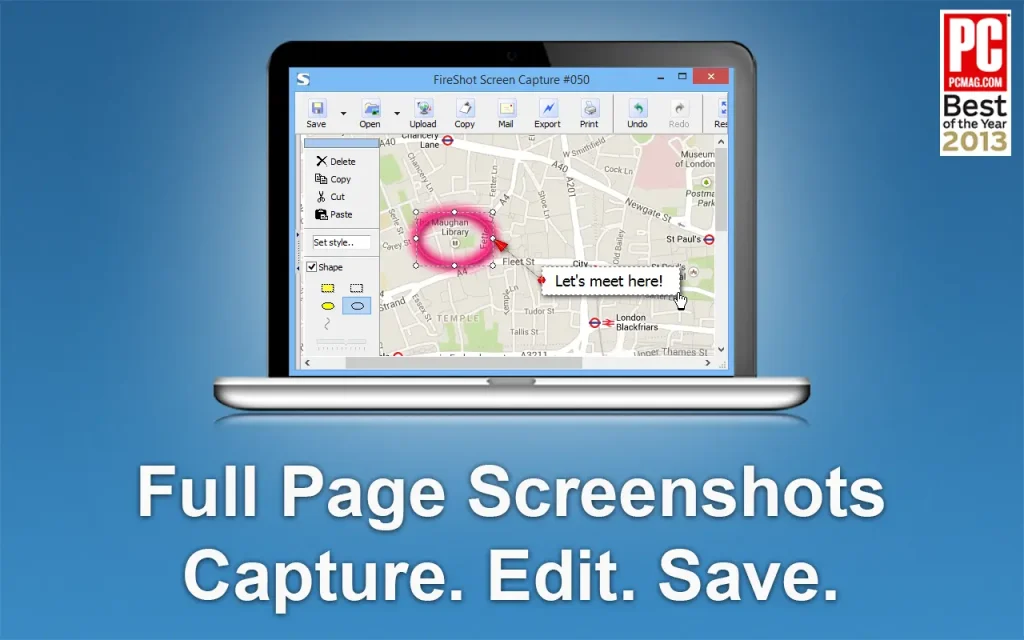
Fireshot is a powerful and popular web browser extension designed primarily for capturing, editing, and annotating screenshots of web pages.
Fireshot is widely used and known for capturing entire, long, scrolling web pages with high fidelity. It is available in major browsers like Chrome, Firefox, Edge, and others.
Key Features:
- Multiple Capture Modes: You can capture the entire page, the visible part of the web page, or just a selected area. Moreover, you can capture all open tabs at once.
- Editing & Annotation: It has a built-in editor and provides annotation tools like text, arrows, lines, shapes, highlights, and even blurs sensitive information.
- Export Options: Save captures as PDF (often with direct links and searchable text in Pro), PNG, JPEG, GIF, or BMP.
- Direct Integrations: Copy to clipboard, send via email, or upload directly to services like Flickr or FTP.
| Users: 3,000,000+ |
| Pricing: Free and Lifetime ($59.95) |
| Pros: Full-page capture, built-in annotation, privacy-focused, and wide compatibility |
| Cons: Powerful features are available in the premium plan |
| Best For: Fireshot is a great tool for capturing high-fidelity full-page screenshots. |
9. Screenshot – Webpage Screen Capture
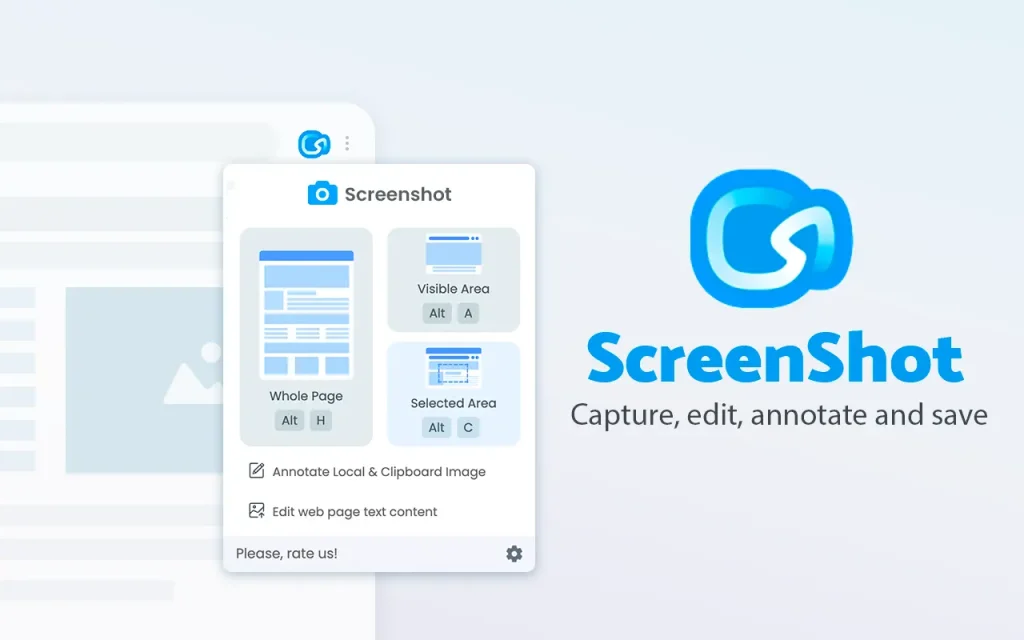
Screenshot – Webpage Screen Capture is a convenient and lightweight tool for quick screenshots and edits. It’s an all-in-one platform for all your needs.
Key Features:
- Multiple Capture Modes: You can capture full-page, selected area, or visible area.
- Basic Annotation: You can add text, arrows, and paint on your screenshots.
- Export Options: Save your screenshots to JPEG, GIF, or PNG.
| Users: 60,000+ |
| Pricing: Free |
| Pros: Multiple capture modes, basic annotation, and no sign-up needed |
| Cons: No keyboard shortcuts |
| Best For: Basic screenshot tasks. |
How to take a full-page screenshot in Chrome without extensions?
Extensions offer advanced features like full-page captures, annotations, and direct integrations with project tools. For that reason, people often use screenshot extensions.
What if you don’t want to use an extension to take a full-page screenshot? In that case, you can use the browser’s built-in Developer Tools.
Follow the steps below to capture a full-page screenshot without an extension:
1. Open the Developer Tools
Open the web page you want to capture, and then open the Developer Tools panel using one of these methods:
- Keyboard Shortcut:
- Windows/Linux: Press Ctrl+Shift+I
- Mac: Press Cmd+Opt+I
- Menu: Click the three-dot menu (⋮) in the top-right corner of Chrome, then select More Tools > Developer Tools.
2. Open the Command Menu
Once you open the Developer Tools, you need to access the Command menu.
- Keyboard Shortcut:
- Windows/Linux: Press Ctrl+Shift+P
- Mac: Press Cmd+Shift+P
This command will open a small search bar in the Developer Tools panel, usually starting with Run>.

3. Capture the Full-Page Screenshot
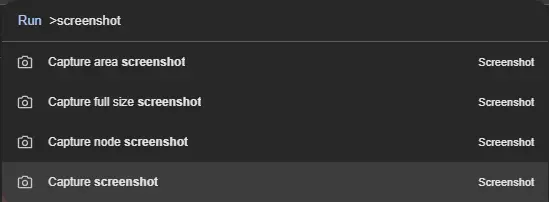
- In the Command Menu search bar, type: screenshot
- Select the capture mode you want (e.g., Capture area screenshot or Capture full size screenshot) from the list of options.
- Chrome will automatically scroll down and capture the entire web page.
The screenshot will be saved as a PNG file to your computer’s download folder.
Alternatively, you can use the Print-to-PDF functionality if an image file isn’t strictly necessary, as this captures the full page:
- Press
Ctrl+P(Windows/Linux) orCmd+P(Mac) to open the Print option. - Set the Destination to “Save as PDF”.
- Click the “Print” button.
Frequently Asked Questions
Are screenshot extensions safe to use?
Most well-known screenshot extensions are safe to use. However, users should first review the permissions and privacy policies. Moreover, always install extensions from the Chrome Web Store.
Can I use multiple screenshot extensions at once?
Yes, you can use multiple screenshot extensions. However, it’s not recommended. Using multiple screenshot extensions can lead to conflicts, toolbar clutter, or slow performance.
It’s better to choose the best screenshot extension that meets your needs—such as GoFullPage for full-page capture or Lightshot for quick, basic screenshots.
Final Thoughts
As you can see, there are many screenshot extensions for Chrome. You need to choose the best screenshot tool that meets your workflow:
- All-in-One Solution: Scribe
- Quick Basic Screenshots: Lightshot
- Full-Page Capture: GoFullPage or Fireshot
- Team Collaboration: Awesome Screen Recorder & Screenshot
- YouTube: Screenshot YouTube
We just included screenshot extensions that are well-rated on the Chrome Web Store and offer essential features for workflow.
What do you think about these screenshot extensions? Let me know in the comments.
Recommended Articles: