


Want to organize your browser like a pro? Yes? Here are some of the top Chrome tab management extensions.
Do you ever look at the top of your Chrome browser and feel a little overwhelmed? You start your day with a clean interface—maybe a quick email check and a news headline.
But by mid-afternoon, your tab bar is so cramped that every single website icon has disappeared, replaced by a sad little “(…)” and you’re desperately clicking tiny arrows just to find that one article you swore you left open.
A cluttered browser isn’t just an eyesore; it makes focusing feel impossible and can even slow your computer to a crawl. Fortunately, you can transform your browser from a junk drawer into a well-oiled productivity machine with the right tools.
In this article, we’ll explore some of the top Chrome tab management extensions to organize your browser like a pro.
Table of Contents
Why You Need a Chrome Tab Management Extension?
Think of a tab management extension as a personal assistant for your browser. Its job is to introduce some much-needed structure. While Chrome has introduced native features like Tab Groups and Memory Saver, power users still lean on extensions.
Here is why you need a Chrome tab management extension:
- Save RAM Usage: Chrome is known for its appetite for memory. Every open tab is essentially a tiny program running in the background. Tab extensions can reduce your browser’s RAM usage by up to 95%.
- Smooth Workspace: Many users juggle “Work Project A,” “Vacation Planning,” and “Random Rabbit Hole.” Tab extensions allow you to save entire “Workspaces.” With one click, you can swap your 15 work tabs for your 10 travel research tabs.
- Disaster Recovery: A browser crash or an accidental window closure can wipe out your entire project. Tab extensions take snapshots of your browser state. You can recover your exact layout, groups, and windows back exactly as they were.
- Search for Tabs: When you have 50 tabs open, finding one specific PDF or spreadsheet becomes a game of “Find the Needle in the Haystack.” Tab extensions provide a vertical, searchable list of every open page across all windows.
These are the primary reasons you should use a Chrome tab management extension.
Key Features to Look for in a Chrome Tab Management Extension
Tab management has evolved from simple “bookmarking” into sophisticated workspace orchestration. If you’re a power user, these are the critical features you should look for in a modern extension.
- Workspaces (Context Switching): The ability to create separate “sections” for different projects (e.g., “Work,” “Personal,” “Vacation Planning”). When you switch workspaces, only the relevant tabs are visible.
- Vertical Tab Layouts: Horizontal tab bars become unreadable after 15 tabs. Vertical layouts allow you to read full page titles and nested hierarchies.
- Tab Hibernation/Sleeping: Automatically put tabs on “sleeping” if they haven’t been clicked in a while (e.g., 20 minutes) without closing them. They reload instantly when clicked.
- Global Search: A powerful “fuzzy search” that lets you find a specific tab across all windows and workspaces just by typing a few letters.
- Crash Protection: If Chrome crashes, you shouldn’t just get your windows back—you should get your specific tab groups and scroll positions back.
These are some of the must-have features to look for in a Chrome tab management extension.
Top Chrome Tab Management Extensions: Overview
| Extension | Pricing | Cloud Sync? | Best For |
|---|---|---|---|
| OneTab | Free | No | Instant De-clutter |
| Session Buddy | Free | No | Session Recovery |
| Toby | Free + Premium (starts from $4.50/mo) | Yes | Visual Organization |
| Tab Manager by Workona | Free + Premium (starts from $7/mo) | Yes | Project Management |
| Tab Manager Plus | Free | No | Visual Tab Management |
| Tab Wrangler | Free | No | Tab Declutter |
| VertiTab | Free + Premium (starts from $2.39/mo) | Yes | Vertical Tab Management |
1. OneTab
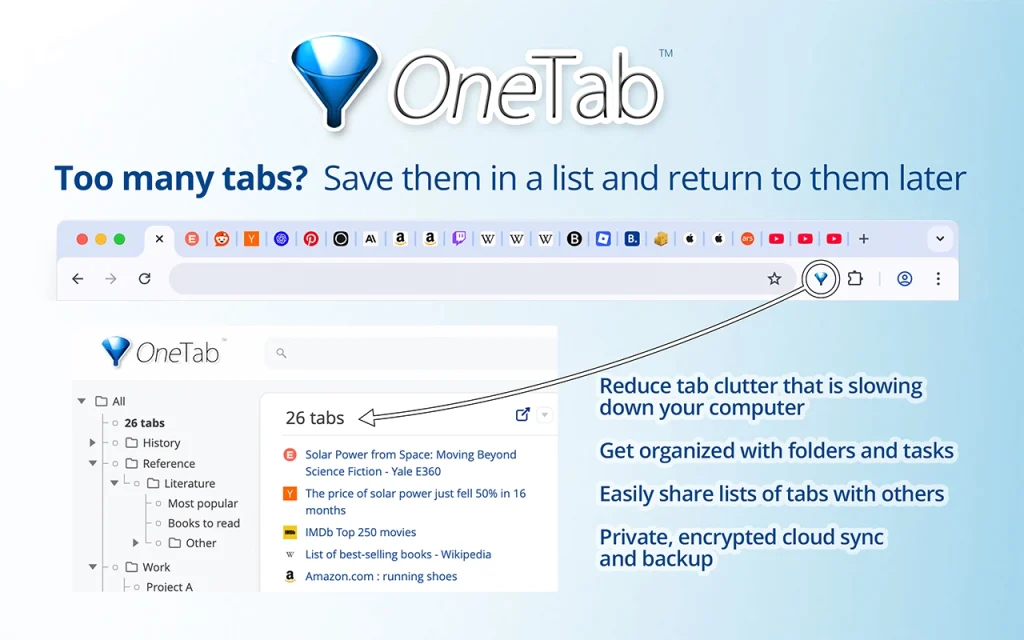
OneTab is a popular, minimalist Chrome browser extension designed to solve the problem of “tab overload.” When you have too many tabs open, you click the OneTab icon, and it instantly collapses all of them into a single tab containing a list of links.
This tab management extension not only cleans up your workspace but also significantly reduces the system resources (RAM and CPU) that your browser consumes.
Key Features:
- One-Click Consolidation: It instantly converts all open tabs in your current window into a single, organized list.
- Memory Reduction: It can reduce browser memory usage by up to 95% by closing active tabs and storing them as simple links.
- Selective Restoration: You can restore your tabs individually or all at once.
- Drag-and-Drop Organization: You can move links around to reorder your saved sessions within the OneTab interface.
- Share as a Web Page: You can turn a list of tabs into a temporary, shareable URL to send to colleagues or open on another device.
- Crash Protection: Your lists are saved even if you close the browser, your computer crashes, or you restart your system.
- Export/Import: You can export your tab list as a text file for backup or to move your tabs to a different browser/computer.
| Users | 2,000,000+ |
| Pricing | Free |
| Pros | Performance boost, privacy-focused, easy to use, and research-friendly |
| Cons | No cloud sync |
2. Session Buddy
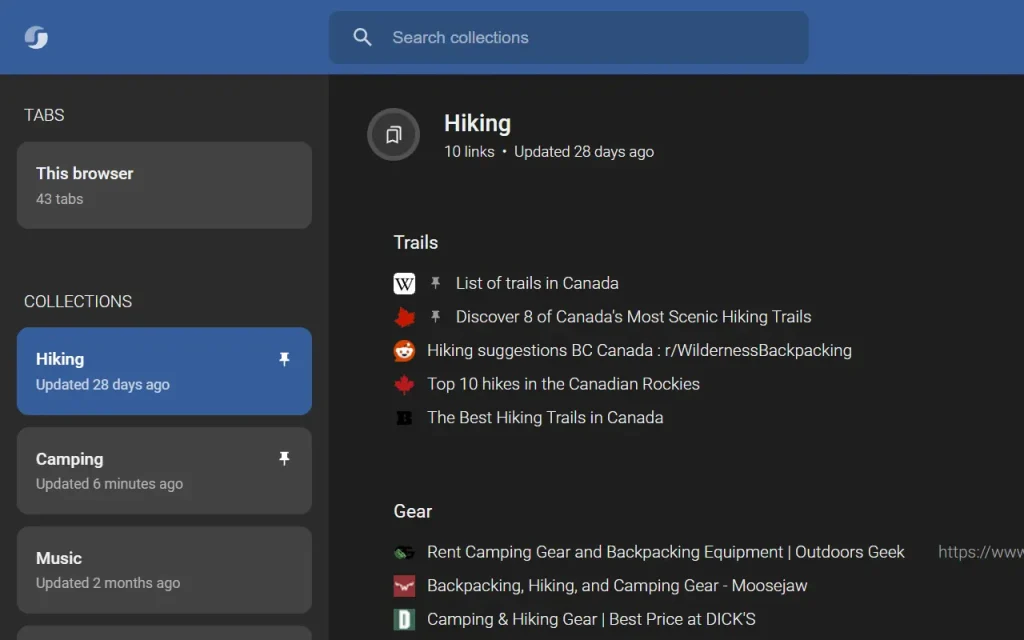
Session Buddy is a prominent Chrome browser extension designed to help you manage, save, and organize browser tabs. It’s popular among “tab hoarders” and researchers because it allows you to close dozens of tabs to free up RAM without losing your work.
Key Features:
- Session Saving (Collections): Allows you to save your current open windows and tabs as a “Collection.” Later, you can restore the window exactly as it was whenever you’re ready to resume that specific project.
- Automatic History & Crash Recovery: It allows you to recover all your lost tabs in one click if your browser or computer crashes.
- Centralized Tab Management: Provides a clean, single-page interface where you can see all your open tabs across all windows. You can drag and drop tabs between windows or delete them from here.
- Search Functionality: It allows you to search both your currently open tabs and your entire history of saved collections to find a specific page quickly.
- Import/Export: Export your tab lists in various formats (JSON, CSV, Markdown) for backups or to share a list of resources with someone else.
| Users | 1,000,000+ |
| Pricing | Free |
| Pros | RAM optimization, privacy-focused, crash protection, and search functionality |
| Cons | No cloud sync |
3. Toby: Tab Management Tool
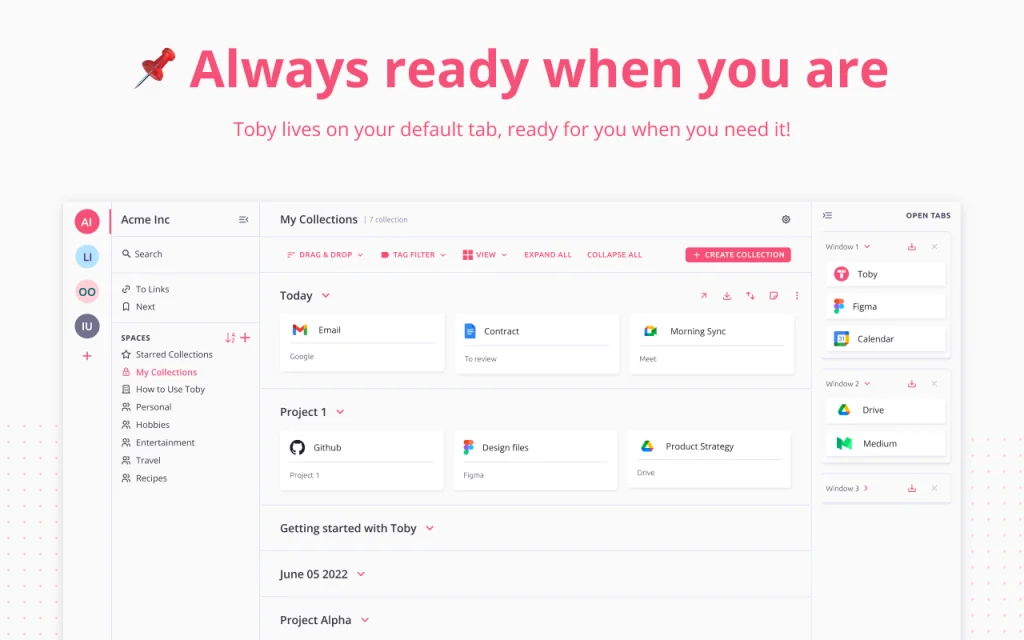
Toby is one of the most popular Chrome browser extensions designed to help you manage tab overload by transforming your “New Tab” page into a productivity dashboard.
It allows you to save and organize open tabs into Collections and Spaces. It’s a visual workspace where you can group resources by project, client, or workflow.
Key Features:
- Collections: You can drag and drop open tabs into named groups (e.g., “Daily News,” “Project X Research,” “Travel Planning”).
- Session Management: You can save your entire browser window as a session with one click. Later, reopen the whole group whenever you’re ready to dive back into that context.
- Spaces: It lets you separate your collections into different areas, such as “Work,” “Personal,” or specific side projects.
- Drag and Drop: You can organize your tabs into collections using drag and drop functionality.
- Team Collaboration: Share collections with teammates so everyone has access to the same set of links and documents for a specific project.
- Search & Filters: A powerful search bar helps you find specific tabs across all your collections and spaces instantly.
- Toby AI: AI-powered suggestions to name, sort, and group your open tabs and sessions.
| Users | 300,000+ |
| Pricing | Free + Premium (starts from $4.50/mo) |
| Pros | Reduces RAM usage, clean visuals, cross-device sync, and instant switch |
| Cons | Limited free plan |
4. Tab Manager by Workona
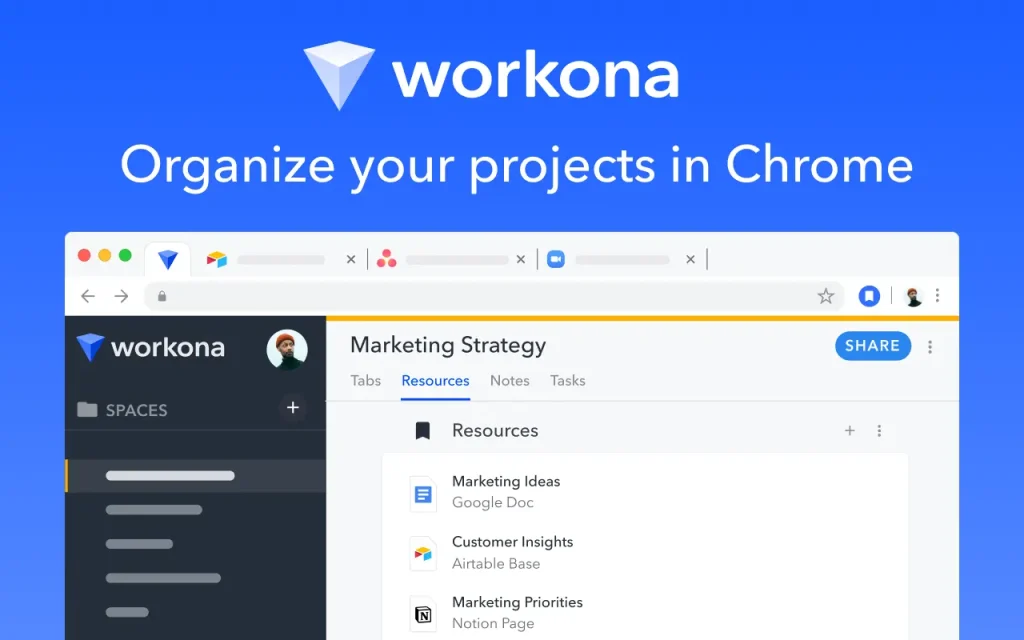
Tab Manager by Workona is a powerful productivity Chrome extension designed to transform the way you use your browser. It turns your browser into a professional workspace, organizing tabs into “Spaces” that function like project folders.
Key Features:
- Spaces (Workspaces): It allows you to organize your tabs into dedicated projects (e.g., “Personal Finance,” “Client Project A,” “Market Research”). When you switch spaces, Workona automatically hides the current tabs and opens the ones related to that project.
- Autosave & Cloud Backups: Automatically saves every tab you open in the cloud. If your browser crashes or you switch computers, you can restore your entire session instantly.
- Tab Suspension: Automatically “suspends” inactive tabs to free up RAM and CPU to keep your computer fast, even with hundreds of tabs saved.
- Global Search: It has a powerful search bar that finds open tabs, saved documents, and files across integrated cloud apps (Google Drive, Slack, Notion, etc.).
- Cross-Device Sync: Syncs your workspaces across any computer where the extension is installed.
| Users | 200,000+ |
| Pricing | Free + Premium (starts from $7/mo) |
| Pros | No tab overload, seamless switch, session recovery, and cross-device sync |
| Cons | Learning curve for beginners and privacy concerns over cloud sync |
5. Tab Manager Plus
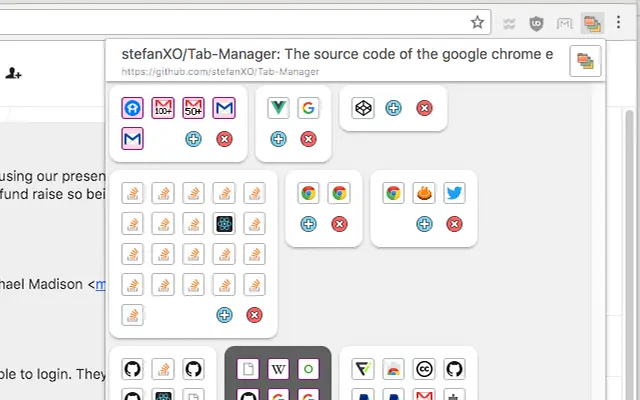
Tab Manager Plus is another Chrome browser extension designed for “tab addicts” who struggle with managing dozens or even hundreds of open tabs.
It provides a visual, birds-eye view of all your open windows and tabs in a clean grid or list format. That makes it much easier to find, organize, and clean up your workspace.
Key Features:
- Visual Overview: It displays all open tabs and windows in a single pop-up. You can choose between a compact view (icons only) or a more detailed list view.
- Instant Search & Filter: It filters tabs by title or URL as soon as you open the extension and start typing.
- Duplicate Detection: Highlights duplicate tabs with a single click, allowing you to quickly close extras and save memory.
- Window Management: You can drag and drop tabs between different windows within the extension’s UI. The tab limit feature automatically opens new tabs in a new window once a certain limit (e.g., 20 tabs) is reached.
- Discard Tabs: This feature suspends inactive tabs to free up RAM without closing them.
- Backup & Restore: Allows you to save your current window layouts and restore them later.
| Users | 200,000+ |
| Pricing | Free |
| Pros | Lightweight, privacy-focused, multi-window support, and excellent search |
| Cons | No cloud sync and learning curve for beginners |
6. Tab Wrangler
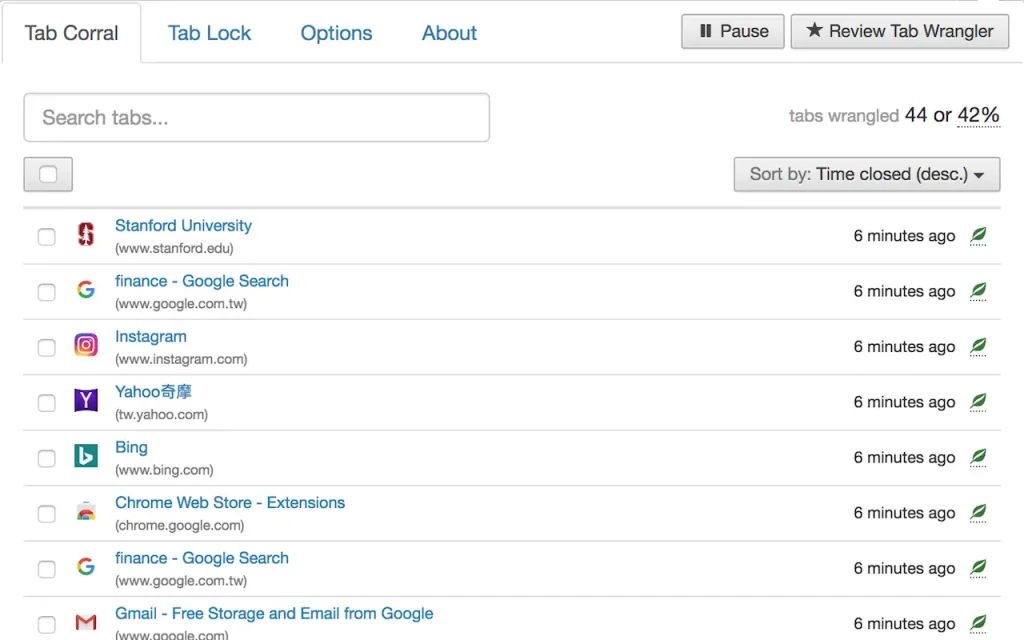
Tab Wrangler is an open-source Chrome browser extension that automatically closes tabs that you haven’t used in a while, keeping your browser decluttered and saving your computer’s RAM without losing your place.
Key Features:
- The Tab Corral: The extension automatically saves closed tabs in a list. You can browse this list, search through it, and restore any tab with a single click.
- Auto-Close Timer: Set a specific duration (e.g., 20 minutes) of inactivity before a tab is considered “stale” and eligible for closing.
- Tab Lock: You can lock certain tabs you want to keep open regardless of activity. The extension will ignore them.
- Whitelists (Exclude List): You can set specific websites or domains to never be closed automatically.
- Minimum Tab Count: You can set a limit when the extension starts closing tabs.
| Users | 60,000+ |
| Pricing | Free |
| Pros | Performance boost, privacy-focused, and settings sync |
| Cons | Restoration limit and unsaved data risk |
7. VertiTab
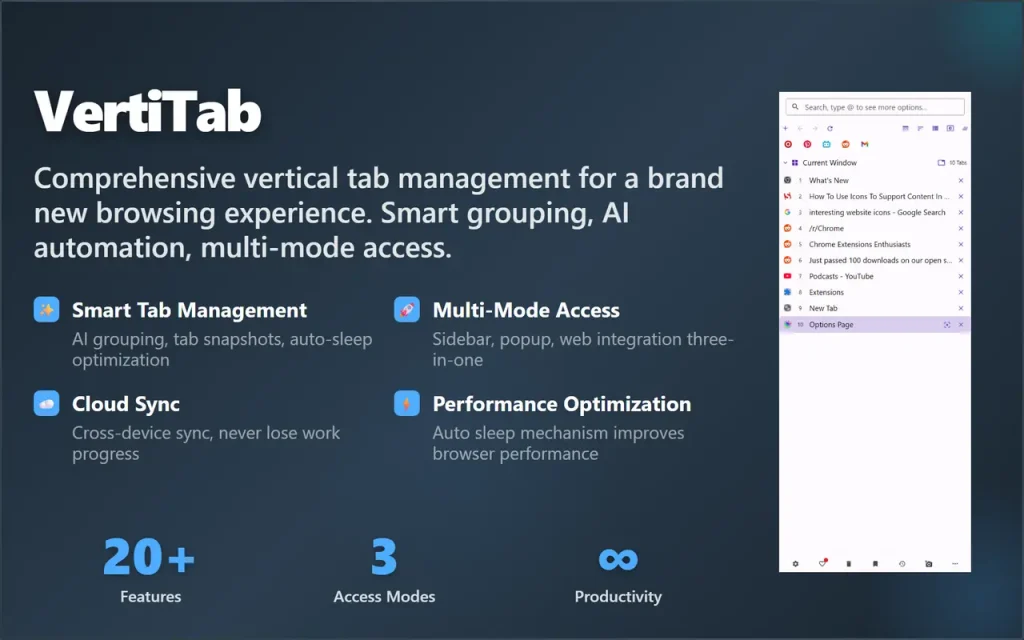
As the name suggests, VertiTab is a comprehensive, feature-rich vertical tab manager built to help users manage large volumes of tabs by moving them from the crowded horizontal top bar to a structured, searchable vertical sidebar.
Key Features:
- Tree-Style Hierarchy: It organizes tabs into folders, allowing you to collapse or expand branches to keep your workspace clean.
- Tab Snapshots: It automatically saves the state of your windows and tabs. If your browser crashes, you can restore your exact workspace with one click.
- Smart Tab Suspension: It can automatically “hibernate” inactive tabs, waking them up only when you click on them. It saves RAM.
| Users | 10,000+ |
| Pricing | Free + Premium (starts from $2.39/mo) |
| Pros | Tab organization, performance boost, and tab restoration |
| Cons | Limited free features |
How to Choose the Right Extension for Your Needs
Choosing the right Chrome tab management extension isn’t about picking the most popular one—it’s about aligning it with your work style.
Before choosing a tab management extension, identify your tab personality, such as:
- The Hoarder: You have lots of tabs open, and your PC can’t take any more.
- The Researcher: You’re working on multiple projects and need them separated.
- The Verticalist: You want a sidebar tree view.
| Tab Personality | Tab Management Tools |
|---|---|
| Workflows | Tab Manager by Workona and Toby |
| Memory Optimization | OneTab and Tab Wrangler |
| Session Recovery | Session Buddy and Tab Manager Plus |
| The Vertical View | VertiTab |
FAQs
Do Chrome tab management extensions slow down the browser?
Most well-built tab management extensions are lightweight. Moreover, these extensions improve browser performance by eliminating inactive tabs and reducing RAM usage.
Can I sync tab managers across multiple devices?
Many popular and premium extensions offer cloud syncing, so you can access workspaces across devices.
What is the best tab manager for low-RAM laptops?
Tab management extensions like OneTab and Tab Wrangler provide memory optimization by eliminating inactive tabs. These are the best extensions for low-RAM devices.
Final Thoughts
Chrome tab management extensions can help you improve your browsing experience. They optimize memory, reduce clutter, and organize workflows.
Whether you’re a student balancing research papers, a remote worker managing clients, or simply someone tired of a crowded tab bar, the right tool can dramatically improve your daily efficiency.
All you need to do is identify your tab personality and choose the right extension. Never use more than one tab management extension.
What do you think about these Chrome tab management extensions? Let me know in the comments.
Recommended Articles: